Adobe Bridge

Adobe Bridge: Workspace not saved on Mac OS X

You want to save a workspace in Adobe Bridge in Mac OS X, but it won’t “take.” The next time you start Bridge, the workspace isn’t available or doesn’t apply when you select it. It just does nothing.

The fix is to open Apple Disk Utility, select your startup volume, and click Repair Disk Permissions.

Now, I know that in theory, repairing permissions shouldn’t fix it. You can count me among those who think that repairing permissions is generally voodoo and that you really oughta be going down other roads first, to fix a problem. But for this particular problem, repairing permissions has worked every time. One time a person walked up to me after one of my conference talks and asked this question and brought the laptop on which it was happening. We tried deleting Bridge preferences and all the other usual troubleshooting techniques, but saved workspaces simply didn’t work until I repaired permissions. It doesn’t make sense, but hey, don’t knock it if it works, right?

I know this is true for Adobe Bridge CS4 on Mac OS X 10.5. I’m not sure if the problem exists or if the solution works on other versions of either software.

Camera Raw: Detailed image inspection with one key

Camera Raw 4.1 and later add a very useful feature that appeared first in Lightroom. If you want to inspect an image closely for dust or other defects that need retouching, the Page Down key takes you through the entire image, from the top left corner to the bottom right corner. Here’s how it works:

1. In Camera Raw, zoom to 100% view or higher.
2. Press the Home key to view the top left corner of the image.
3. Press the Page Down key to move down one screen.
4. Press Page Down again to move down another screen. This is the cool part: If you hit the bottom of the image and press Page Down, Camera Raw automatically jumps to the top of the image one screen to the right! This means that all you have to do to check the entire image is keep pressing Page Down, until you reach the bottom right corner of the image.

On notebook computers without separate Home, End, Page Up, or Page Down keys, remember that they may be available as second functions on your arrow or other keys. For example, on Mac notebooks, these four functions are overlaid on the four arrow keys, and invoked when you also press the Fn (function) key. So to use Page Down, you’d press Fn+Down Arrow.

Open Raw files in Adobe Camera Raw by default

If you use Adobe Camera Raw as your raw converter for digital camera raw files, you might want to be able to open your raw files in Camera Raw when you double-click them. For most files, you would do this in your operating system by changing which application opens the camera raw file type.

But with Camera Raw, there’s a catch. Camera Raw is not a standalone application, so you can’t associate it directly with a file type. It turns out that this is not a big deal, because Adobe Photoshop must open camera raw files in Camera Raw anyway. So the solution is to associate camera raw files with Photoshop. I show the steps below for Mac OS X; the steps for Windows are similar.

1. On the desktop, select a raw file of the type you want to open in Photoshop. I’ve selected a CR2 file from a Canon digital SLR.
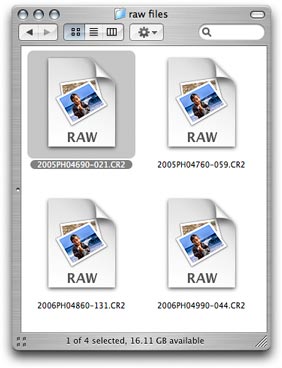
Select a raw file

2. Choose File > Get Info (Command+I).

Open the Get Info window

3. From the Open With pop-up menu in the Get Info window, choose the version of Photoshop that you want to use to open your raw files.
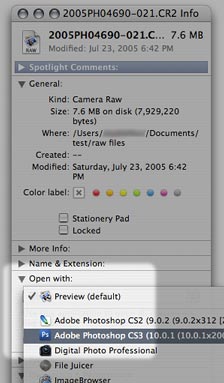
Assign Photoshop to the file type

4. The file icon updates to indicate that Photoshop will now open it.

Icon indicates new association

5. Click “Change All” so that your change applies to all files of the same type. Other file icons may not update immediately, but the change has taken effect. From now on, when you double-click that type of a raw file, it will open in Photoshop, which will then open it in Adobe Camera Raw.
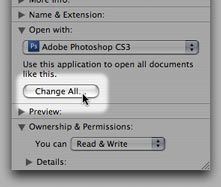
Set this association as the default

Because the file association is tied to a specific file type, making this change affects only the file type you’ve changed. You’ll need to associate each different raw file type separately. For example, if you made this change for NEF (Nikon) raw files and then you later work with some CR2 (Canon) raw files, you’ll have to associate the CR2 files with Photoshop too.

(If you’re having trouble getting Camera Raw to see your raw files in the first place, try updating Camera Raw. Support for new cameras is added several times a year. Either download the latest version from adobe.com, or run the Adobe Updater utility that came with Photoshop. Note that the current version of Camera Raw may not work with older versions of Photoshop. If you are trying to edit a new camera’s raw files in a version of Photoshop that’s too old for the current version of Camera Raw, you should either upgrade Photoshop or use the free Adobe DNG converter to convert raw files to the DNG format, which older versions of Camera Raw can edit.)

Thanks to Céline C. for asking this question!

Bridge CS2: Renaming files with the keyboard, whether you meant to or not…

To rename a selected file or folder in Adobe Bridge CS2 without using the mouse, press the spacebar, type the name, and then press Return or Enter. (For Bridge CS3 and later, see the note at the end of this post.)

If you pressed the spacebar without intending to change the filename of the selected file, your next keystroke will accidentally change the filename, and it will become permanent as soon as you click anywhere else. Once a new filename is committed, you can’t undo it. This can be a disaster if you never realize you renamed a file that was selected, and you go looking for it later without knowing that it’s under a new name. If you suddenly realize you’ve entered filename editing mode by accident, immediately press the Esc key to escape that mode without changing the original filename.

Pressing the spacebar to rename may not be intuitive if you’re used to pressing Return on Mac OS X to rename a file, but in Bridge, the Return key is already taken: it opens the file in the default editor for its file type. That use of the Return/Enter key is consistent with Windows.

Why would anyone have a reason to press the spacebar in a file browser other than to rename a file? Sometimes it’s because of the habits people pick up in other programs. Some people press the spacebar to get to the top of an alphabetical list, and others are used to pressing the spacebar in other Adobe applications to get a hand tool to pan a document in a window.

Note: In Bridge CS3, accidental renaming is much less likely because the renaming shortcut was changed to the F2 key. You can still click the filename after the file is selected; just don’t double-click the file or you’ll open it.

“Folder not found” error when batch processing in Photoshop

If you try to run a batch process in Adobe Photoshop (either from Photoshop or from Adobe Bridge) and you get an error message that says a folder wasn’t found, here are some things to check:

  • In the Batch Processing dialog box, look at the Errors section at the bottom of the dialog box. If you have the Errors pop-up menu set to Log Errors to File, click Save As and reset the error log file location. Pointing the log file to a disk or disk name that isn’t mounted or no longer exists can cause the error message. For example, maybe you renamed or deleted the folder that the error log was pointed to before.
  • Check the action you’re running, and if there any folder paths in any action step, make sure those paths are still valid. Folder paths can exist in can Open step, a Save step, or a Load or Save step. For example, you might have a step that loads a saved curve from disk into the Curves dialog box.
  • If you action calls other actions, check the folder paths in those sub-actions.