Adobe Camera Raw

Updates: Photoshop CS5 12.0.2, Camera Raw 6.3, Lightroom 3.3

Adobe photography application icons

Adobe has released a wave of updates for its professional photography applications:

Adobe Photoshop CS5 12.0.2 (no release notes link, see download/updates link below)
Adobe Camera Raw 6.3 (click for release notes in PDF)
Adobe Photoshop Lightroom 3.3 (click for release notes in PDF)

As usual, you can read the release notes and download the installers from

http://www.adobe.com/downloads/updates/

or:

To update Photoshop and Camera Raw directly, start Photoshop and choose Help > Updates.

To update Lightroom directly, start Lightroom and choose Help > Updates.

I may pull out some highlights from the release notes here later when I have more time, but for now you can refer to the links above.

Real World Adobe Photoshop CS5 for Photographers: now available

So now you’ve got Adobe Photoshop CS5, and you need to know which new features can bring the highest return to your photography and your studio’s workflow. Lucky you…just grab my book Real World Adobe Photoshop CS5 for Photographers, which is now available.

Real World Adobe Photoshop CS5 for Photographers book coverI concentrate on the needs of professional digital photographers so that you don’t have to wade through explanations of 3D, HTML, or cheesy special effects just to get good, solid images out the door. This book is about Photoshop for pure photography: How to get the image from the camera into editing and then produce the best possible version for the diverse forms of output that your clients demand today, such as CMYK printing, RGB inkjet printing, online photo galleries and sharing websites such as Facebook and Flickr.

Going well beyond a mere description of what’s in the menus and tools, Real World Photoshop still includes the time-tested, fundamental guidance about color correction, color management, and efficient workflow that has made edition after edition a perennial best-seller. You’ll also find valuable tips on almost every page in the book and advice on how to put together a killer Photoshop computer.

Here are some of the new features I cover in this CS5 edition:

  • Mask difficult edges, such as hair, more quickly using improved Refine Edge
  • Extend and optimize image dynamic range with Merge to HDR Pro and HDR Toning
  • Retouch faster with Content Aware Fill and Content Aware Heal
  • Correct lens distortions with new Lens Profiles
  • Select and specify colors faster with the new HUD Color Picker
  • Convert images and upload directly to Facebook, Flickr, and other destinations in one step, using the new Output panel in Adobe Bridge
  • Make the most of the rewritten raw processing engine, dramatically improved noise reduction, and new lens corrections in Adobe Camera Raw 6

How to get yours

Get Real World Adobe Photoshop CS5 for Photographers at your favorite bookseller, at Amazon.com, or at Peachpit.com. Want it as an e-book? Check out Safari Books Online. If you’re a Creative Edge subscriber, you can even start reading Rough Cuts drafts of this and other Peachpit Press books online before they come off the press.

Camera Raw: Detailed image inspection with one key

Camera Raw 4.1 and later add a very useful feature that appeared first in Lightroom. If you want to inspect an image closely for dust or other defects that need retouching, the Page Down key takes you through the entire image, from the top left corner to the bottom right corner. Here’s how it works:

1. In Camera Raw, zoom to 100% view or higher.
2. Press the Home key to view the top left corner of the image.
3. Press the Page Down key to move down one screen.
4. Press Page Down again to move down another screen. This is the cool part: If you hit the bottom of the image and press Page Down, Camera Raw automatically jumps to the top of the image one screen to the right! This means that all you have to do to check the entire image is keep pressing Page Down, until you reach the bottom right corner of the image.

On notebook computers without separate Home, End, Page Up, or Page Down keys, remember that they may be available as second functions on your arrow or other keys. For example, on Mac notebooks, these four functions are overlaid on the four arrow keys, and invoked when you also press the Fn (function) key. So to use Page Down, you’d press Fn+Down Arrow.

Open Raw files in Adobe Camera Raw by default

If you use Adobe Camera Raw as your raw converter for digital camera raw files, you might want to be able to open your raw files in Camera Raw when you double-click them. For most files, you would do this in your operating system by changing which application opens the camera raw file type.

But with Camera Raw, there’s a catch. Camera Raw is not a standalone application, so you can’t associate it directly with a file type. It turns out that this is not a big deal, because Adobe Photoshop must open camera raw files in Camera Raw anyway. So the solution is to associate camera raw files with Photoshop. I show the steps below for Mac OS X; the steps for Windows are similar.

1. On the desktop, select a raw file of the type you want to open in Photoshop. I’ve selected a CR2 file from a Canon digital SLR.
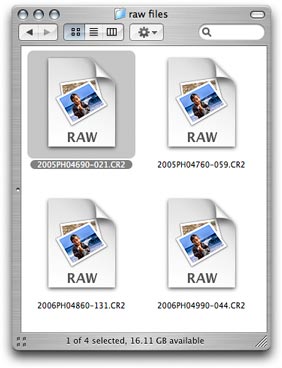
Select a raw file

2. Choose File > Get Info (Command+I).

Open the Get Info window

3. From the Open With pop-up menu in the Get Info window, choose the version of Photoshop that you want to use to open your raw files.
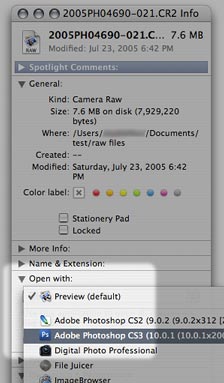
Assign Photoshop to the file type

4. The file icon updates to indicate that Photoshop will now open it.

Icon indicates new association

5. Click “Change All” so that your change applies to all files of the same type. Other file icons may not update immediately, but the change has taken effect. From now on, when you double-click that type of a raw file, it will open in Photoshop, which will then open it in Adobe Camera Raw.
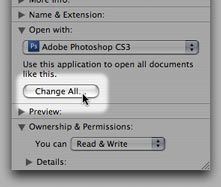
Set this association as the default

Because the file association is tied to a specific file type, making this change affects only the file type you’ve changed. You’ll need to associate each different raw file type separately. For example, if you made this change for NEF (Nikon) raw files and then you later work with some CR2 (Canon) raw files, you’ll have to associate the CR2 files with Photoshop too.

(If you’re having trouble getting Camera Raw to see your raw files in the first place, try updating Camera Raw. Support for new cameras is added several times a year. Either download the latest version from adobe.com, or run the Adobe Updater utility that came with Photoshop. Note that the current version of Camera Raw may not work with older versions of Photoshop. If you are trying to edit a new camera’s raw files in a version of Photoshop that’s too old for the current version of Camera Raw, you should either upgrade Photoshop or use the free Adobe DNG converter to convert raw files to the DNG format, which older versions of Camera Raw can edit.)

Thanks to Céline C. for asking this question!

Dr. Brown’s Place-O-Matic: Camera Raw color space not used?

If you use the Dr. Brown’s Place-O-Matic plug-in for Photoshop and the Space in the Adobe Camera Raw dialog box doesn’t seem to be applied to the Photoshop document containing the Smart Objects generated by the plug-in, change your Color Settings in Photoshop (Edit > Color Settings) before using Dr. Brown’s Place-O-Matic. Dr. Brown’s Place-O-Matic sets up the Photoshop document using the current Color Settings.

I came across this when I selected ProPhoto RGB and 16 Bits/Channel in the Camera Raw dialog box, and noticed that the resulting Photoshop document was in sRGB. When I changed my Color Settings to use ProPhoto RGB, the Photoshop document created by Dr. Brown’s Place-O-Matic was created with ProPhoto RGB.

Dr. Brown’s Place-O-Matic is a free Photoshop plug-in available from the Tips and Techniques page on Russell Brown’s web site. It helps you create one image from two different conversions of the same camera raw format image, such as when you want to combine the very light and very dark parts of the same image. Because the plug-in imports two versions of a camera raw image as smart objects, you can alter the conversion settings at any time, which gives you a lot of flexibility.