Mac OS X

Photoshop CS5: Fix crashes in Mac OS X 10.6.4

If you experienced crashes in Adobe Photoshop CS5 on the Mac after installing the Mac OS X 10.6.4 update, there were issues with the graphics drivers in that particular Apple update that may have caused your crashes. (The bugs may have also affected you if you use Apple Aperture or play certain graphics-intensive games under Mac OS X 10.6.4.)

Now the good news: Apple has released Snow Leopard Graphics Update 1.0. If you download it and then install it on Mac OS X 10.6.4, it should resolve the problem, according to Adobe.

If you had been holding at Mac OS X 10.6.3 like I’ve been, it looks like it’s finally safe for Photoshop users to move up to Mac OS X 10.6.4 as long as you also install Snow Leopard Graphics Update 1.0.

Mac OS X: The Dock or Application Switcher stops working

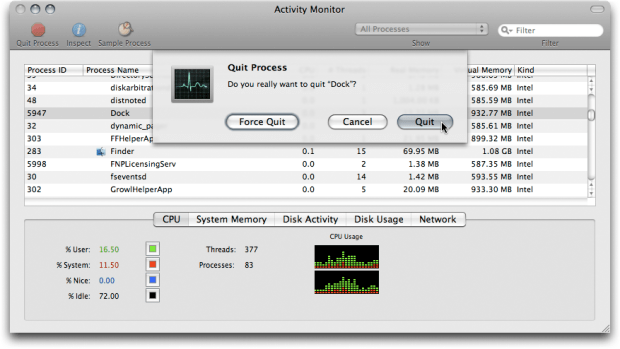
Today I tried to press the Command-Tab shortcut for the Application Switcher but nothing happened. Another thing that wasn’t working was moving the mouse to the edge of the display to make the hidden Dock appear. The keyboard shortcut to display the Dock wasn’t working either. If this happens to you, the way to fix all of these problems is to restart the Dock. Open the Activity Monitor (it’s in the Utilities folder), select Dock in the list, and click the Quit Process button (or choose View > Quit Process). In the confirmation dialog box that appears, click Quit. The Dock is one of those processes that restarts itself if it’s quit, so that’s all you should have to do. The Dock and Application Switcher should both work now.

Quitting the Dock

Not everyone is aware that the Dock hosts many processes in Mac OS X. For example, in addition to running the Application Switcher, the Dock also runs all of the Dashboard widgets. That’s why the way to make all Dashboard widgets quit is to quit the Dock. (When you simply exit Dashboard, its widgets don’t actually quit—they keep running invisibly in the background, taking up RAM and CPU power.) You can see how processes run within each other in Activity Monitor if you click the Show pop-up menu at the top of the window and choose All Processes, Hierarchically.

Now, of course, you can also fix this by logging out and back in, or you can restart the entire computer. But I often work with a lot of programs and documents open, and that’s why I look for ways to fix problems without having to close all my programs and windows and then set up the entire workspace again.

Adobe Bridge: Workspace not saved on Mac OS X

You want to save a workspace in Adobe Bridge in Mac OS X, but it won’t “take.” The next time you start Bridge, the workspace isn’t available or doesn’t apply when you select it. It just does nothing.

The fix is to open Apple Disk Utility, select your startup volume, and click Repair Disk Permissions.

Now, I know that in theory, repairing permissions shouldn’t fix it. You can count me among those who think that repairing permissions is generally voodoo and that you really oughta be going down other roads first, to fix a problem. But for this particular problem, repairing permissions has worked every time. One time a person walked up to me after one of my conference talks and asked this question and brought the laptop on which it was happening. We tried deleting Bridge preferences and all the other usual troubleshooting techniques, but saved workspaces simply didn’t work until I repaired permissions. It doesn’t make sense, but hey, don’t knock it if it works, right?

I know this is true for Adobe Bridge CS4 on Mac OS X 10.5. I’m not sure if the problem exists or if the solution works on other versions of either software.

Epson inkjet printers: Printer preset forgets settings

If you use an Epson Stylus Photo/Epson Stylus Pro printer in Mac OS X and you save printer settings as printer presets (a recommended practice), there may be times when you choose a preset and realize that some of the settings mysteriously deviate from the way you saved them. For example, you might swear that you saved the Printer Color Management setting as No Color Management, but it somehow turns itself back on when you apply a preset. Other symptoms are finding the wrong paper type or color settings selected. And even more mysteriously, you might notice that sometimes it does remember the same settings that it forgot on another occasion.

I don’t know if this applies to all printers in OS X, but presets for Epson photo printers are quite sensitive to the conditions under which they were created—and unexpectedly, this can include the state of settings that are outside the Print dialog itself. Pay particular attention to the settings in the Page Setup dialog box.

For example, I once discovered that reason my Epson 3800 printer presets would not remember my color settings was that the current paper source did not match the paper source that was in effect when I created the preset! I’ve had to make two versions of my favorite presets: One preset for when I’m using the automatic paper feeder, and another for when I’m using the manual feed slot. The settings saved in each preset are exactly the same; the only difference is which paper feed is selected when I save each preset. Of course, I have to mention the paper source in each preset’s name, so that I know which one to select.

I have not yet tested if this behavior is the same in Windows.

This interaction between paper source and printer presets is yet another reason to make sure you always check the Page Setup dialog box before you print, and especially before you print a Photoshop document for the first time. In Page Setup, the selected printer, paper size, and paper source affect what you get to do in the Print dialog box. If you don’t get Page Setup right from the beginning, you’re setting yourself up for confusion when you print.

Lightroom. If you’re trying to get Epson printer driver settings to stick in Adobe Photoshop Lightroom on Mac OS X when you save a Lightroom printer preset, the trick is to not use the Epson printer driver presets. Instead, leave the printer preset set to Standard, make the printer driver settings,  and then save the Lightroom printer preset.

Cannot read CD or DVD from Windows Vista

If you get a CD or DVD from a Windows user and it seems blank, or you can’t read it on your Mac (or non-Vista version of Windows), and the Windows user swears the disc was burned successfully, the Windows user probably burned it using the default settings in Windows Vista. With the default settings, the disc may not be readable on older versions of Windows, or on non-Windows systems such as Mac OS X and Linux. The files may actually be there on the disc, but they may not be visible on the unsupported system.

If you are working with a Windows user who knows how to re-burn the DVD with different settings, have them re-burn it using Mastered Format instead of the default Live File System. Mastered Format is more compatible with the rest of the computing world. (So why does Microsoft make Live File System the default in Vista? Apparently it has some useful features that make DVD burning a little more flexible than it is on other systems.)

An alternative to wasting another disc is to open the disc in a copy of Windows Vista or Windows XP running in virtualization on your Mac (such as in Parallels Desktop or VMWare Fusion) and then drag the files over to the Mac side. That’s ultimately what I decided to do; I was able to see the invisible files in my up-to-date version of Windows XP running under Parallels Desktop.

Or, if you happen to have a PC that you can reach over the network from your Mac, you could also try putting the DVD into the PC and grabbing it over the network from the Mac.

Update/note: I do not know if this issue with default burn settings also applies to Windows 7 or later. If you know, tell us in the comments!