It’s easy to fall into the trap of seeing a subject, shooting at eye level, and simply moving on; I have to remember to break out of that habit all the time. Walking past a building site the other night, I was intrigued by the color and perspective of the green pipes they brought in. The way the pipes leaned out over the new walls looked like a battleship gun Terry Gilliam would dream up. The eye-level shot I took really didn’t do anything for me and I deleted it, but I really wanted to make the shot work. I remembered to try pushing the pipes up into the sky or down into the ground simply by moving the camera up and down. As a result, I got two shots I liked a whole lot more than the eye-level shot.

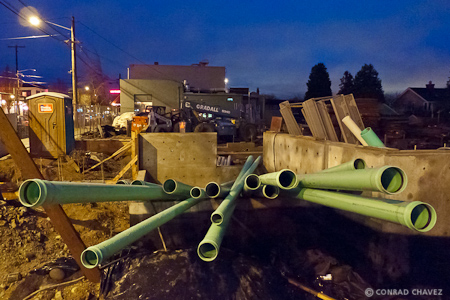
For the first shot I lowered the camera to about a foot off the ground, and for the second shot I raised the camera as far up as my arms could reach. That simple 6-foot difference produced two noticeably different images.
What the photos don’t show is the chain-link fence around the building site. To make the fence disappear, I moved the camera right up to the fence and shot through it. The fence turned out to be more of a help than a hindrance, because I was able to brace the camera on the fence with both hands to steady a long exposure enough for the camera’s image stabilization to be able to make up the difference. This was made easier because I was shooting with my pocket camera, a Panasonic DMC-LX3 set to shoot raw at ISO 1600. If it had been an SLR, I wouldn’t have been able to rest the entire lens inside one of the chain link holes.
It was the screen on the back of the camera that let me compose the shots without having to lie on the wet ground or finding a ladder. There’s a rather significant group of photographers that’s devoted to the optical viewfinder, and they tend to take a dim view of shooting with any electronic viewfinder. These two shots are examples of why I don’t agree with them. On the camera screen I was able to compose and check the composition at the edges, level (with the help of the on-screen grid option), and check exposure with the help of the histogram and clipping display, and I could do it with the camera at an odd angle far from my face. Being able to read the screen from a distance freed me up to create two very different compositions from the same spot on the sidewalk.
When processing the shot later in Lightroom 3.3, noise reduction, Clarity, and Vibrance were very helpful in cleaning up the image and punching up the color and local contrast. High ISO shadows can be a little purple on this camera, so I reduced the purple saturation in the Hue/Saturation/Lightness panel.




 conrad chavez | blog