Adobe Camera Raw

Exploring Creative Lens Correction: Peachpit.com article

Image of article

The new Lens Correction feature in Adobe Photoshop CS5, Adobe Camera Raw 6.1 or later, and Adobe Photoshop Lightroom 3 does a great job of removing various forms of distortion that you find in all kinds of lenses—from phone cameras to $1500 pro lenses. But there’s nothing stopping you from taking Lens Correction a step further: using it as a creative tool that can strengthen your compositions and spice up your images.

Click the link below to read the article at Peachpit.com:
Exploring Creative Lens Correction in Adobe Photoshop CS5 and Lightroom 3

Updates: Photoshop CS5 12.0.2, Camera Raw 6.3, Lightroom 3.3

Adobe photography application icons

Adobe has released a wave of updates for its professional photography applications:

Adobe Photoshop CS5 12.0.2 (no release notes link, see download/updates link below)
Adobe Camera Raw 6.3 (click for release notes in PDF)
Adobe Photoshop Lightroom 3.3 (click for release notes in PDF)

As usual, you can read the release notes and download the installers from

http://www.adobe.com/downloads/updates/

or:

To update Photoshop and Camera Raw directly, start Photoshop and choose Help > Updates.

To update Lightroom directly, start Lightroom and choose Help > Updates.

I may pull out some highlights from the release notes here later when I have more time, but for now you can refer to the links above.

Camera Raw: Detailed image inspection with one key

Camera Raw 4.1 and later add a very useful feature that appeared first in Lightroom. If you want to inspect an image closely for dust or other defects that need retouching, the Page Down key takes you through the entire image, from the top left corner to the bottom right corner. Here’s how it works:

1. In Camera Raw, zoom to 100% view or higher.
2. Press the Home key to view the top left corner of the image.
3. Press the Page Down key to move down one screen.
4. Press Page Down again to move down another screen. This is the cool part: If you hit the bottom of the image and press Page Down, Camera Raw automatically jumps to the top of the image one screen to the right! This means that all you have to do to check the entire image is keep pressing Page Down, until you reach the bottom right corner of the image.

On notebook computers without separate Home, End, Page Up, or Page Down keys, remember that they may be available as second functions on your arrow or other keys. For example, on Mac notebooks, these four functions are overlaid on the four arrow keys, and invoked when you also press the Fn (function) key. So to use Page Down, you’d press Fn+Down Arrow.

Open Raw files in Adobe Camera Raw by default

If you use Adobe Camera Raw as your raw converter for digital camera raw files, you might want to be able to open your raw files in Camera Raw when you double-click them. For most files, you would do this in your operating system by changing which application opens the camera raw file type.

But with Camera Raw, there’s a catch. Camera Raw is not a standalone application, so you can’t associate it directly with a file type. It turns out that this is not a big deal, because Adobe Photoshop must open camera raw files in Camera Raw anyway. So the solution is to associate camera raw files with Photoshop. I show the steps below for Mac OS X; the steps for Windows are similar.

1. On the desktop, select a raw file of the type you want to open in Photoshop. I’ve selected a CR2 file from a Canon digital SLR.
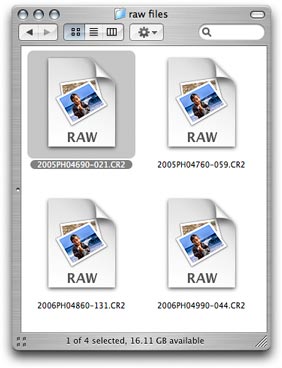
Select a raw file

2. Choose File > Get Info (Command+I).

Open the Get Info window

3. From the Open With pop-up menu in the Get Info window, choose the version of Photoshop that you want to use to open your raw files.
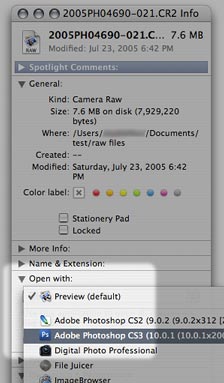
Assign Photoshop to the file type

4. The file icon updates to indicate that Photoshop will now open it.

Icon indicates new association

5. Click “Change All” so that your change applies to all files of the same type. Other file icons may not update immediately, but the change has taken effect. From now on, when you double-click that type of a raw file, it will open in Photoshop, which will then open it in Adobe Camera Raw.
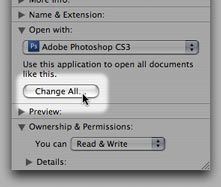
Set this association as the default

Because the file association is tied to a specific file type, making this change affects only the file type you’ve changed. You’ll need to associate each different raw file type separately. For example, if you made this change for NEF (Nikon) raw files and then you later work with some CR2 (Canon) raw files, you’ll have to associate the CR2 files with Photoshop too.

(If you’re having trouble getting Camera Raw to see your raw files in the first place, try updating Camera Raw. Support for new cameras is added several times a year. Either download the latest version from adobe.com, or run the Adobe Updater utility that came with Photoshop. Note that the current version of Camera Raw may not work with older versions of Photoshop. If you are trying to edit a new camera’s raw files in a version of Photoshop that’s too old for the current version of Camera Raw, you should either upgrade Photoshop or use the free Adobe DNG converter to convert raw files to the DNG format, which older versions of Camera Raw can edit.)

Thanks to Céline C. for asking this question!