Make the Most of Your Domain Name — CreativePro.com article

Example of using subdomains

When you get a domain name for your website, think bigger than just your website. Your creative business is likely to expand its online presence with accounts on services such as blogging, portfolio, and e-commerce sites, which typically offer the option of associating a custom domain name with your account. That’s an opportunity for you to use your domain name in ways that can reinforce your brand online. In my latest article for CreativePro.com, I suggest how to take advantage of those opportunities with three quick tips.

Click the link below to read the article at CreativePro.com:
Creative Business: Make the Most of Your Domain Name

CreativePro article-Creative Business:: Make the Most of Your Domain Name

Camera Raw 8.2 vs Lightroom 5.2: Latest releases shift the balance

Photoshop CC iconAdobe Lightroom 5 iconAdobe Creative Cloud icon

Adobe Photoshop Lightroom has traditionally had a few more productivity features than Adobe Camera Raw, but the improvements in the September 2013 release of Adobe Camera Raw 8.2 bring Camera Raw closer to parity with Lightroom. (Version 5.2 of Lightroom was released at the same time.) Both have been available as public release candidates (test versions), but these are now the final versions.

ACR catches up to Lightroom

Adobe keeps ACR and LR in sync for format compatibility, but Lightroom has historically had more efficiency and workflow features than Camera Raw. This time it looks like Adobe wanted to sync up the feature sets more tightly. The features below add to those in the June release of Camera Raw 8.1 and were already part of Lightroom, such as soft-proofing and making the crop aspect ratio independent of output dimensions.

Interactive histogram. You can drag ranges of the Camera Raw histogram left or right, and each range corresponds to a slider in the Basic panel. For example, dragging the far left side of the histogram (the darkest tones) adjusts the Blacks slider. You can now do this in Camera Raw 8.2. When you drag in the histogram, the corresponding slider moves and a readout below the histogram tells you what’s being changed. In the example below, the second zone from the left is dragged and the readout shows that zone affects the Shadows value.

Interactive histogram

By the way, if you’re new to Camera Raw 8, notice that when you select a printer profile in Workflow Options the usual highlight and shadow clipping icons at the top left and top right corners of the histogram are replaced by a single Gamut Warning icon in the top right corner (the one that looks like a printer) . This is consistent with the new soft-proofing capability. Note that this icon does not necessarily mean a CMYK profile is selected, because it will appear if the printer profile you’ve selected is RGB-based.

Workflow presets. Up until now it has been a bit of a hassle to use Camera Raw for direct output to different media because it could remember only the last settings you used. If you wanted to output more images using the settings from an export before the most recent one, you would have to enter those settings all over again. And hopefully you wrote them down. Lightroom users have had it much easier, because if you saved a Lightroom export preset you could reproduce the settings of a previous export instantly and exactly. Now Camera Raw has a similar capability in the form of workflow presets.

To choose a workflow preset in the main Camera Raw window, right-click the blue linked workflow text at the bottom of the window.

Choosing workflow options

To set up workflow option presets, click the blue linked workflow text at the bottom of the Camera Raw window, customize the options in the Workflow Options dialog box that opens, and at the top of the dialog box use the commands in the Preset menu to create or update workflow presets.

Workflow options dialog box

Save options presets. You can also create presets for the settings in the Save Options dialog box. To make this practical, Adobe added the Color Space, Image Sizing, and Output Sharpening options to the Save Options dialog box. This makes it possible to use Save options that are different than the Workflow options. (A Save preset applies when you save to a finished image file directly from Camera Raw, while a Workflow preset applies when you convert an image from Camera Raw into a new Photoshop document.) This distinction is important because the requirements of saving vs Photoshop conversion are very different. When you convert raw to Photoshop you usually want to preserve maximum image quality for further Photoshop editing, but when you save a finished file from Camera Raw you usually want to downsample it, compress it, apply output sharpening to it, and convert it to sRGB color, especially if it’s for a web site or for final presentation on a display.

Save options presets

New features for both Camera Raw and Lightroom

Some features are new to both Camera Raw 8.2 and Lightroom 5.2.

Color noise reduction smoothing. Applying color noise reduction can reduce the effect of fine color noise, but larger splotchy areas could still exist. In the past, the only way to address the splotchiness was to turn up the Color noise reduction value even more, but that could reduce color detail that you wanted to preserve. Now you can leave the Color setting the same and increase Color Smoothness instead.

Color Smoothness option

In the example below, the left image is set for a Color Smoothness value of 0, and the right image is set to a value of 70. Notice how the large areas of color noise become much less visible.

Color Smoothness example

In other words, use the Color noise reduction option to reduce high frequency color noise, and use the Color Smoothness option to reduce low frequency color noise.

Duplicate an Adjustment Brush pin. When a local adjustment is already maxed out, a popular workaround is to add another adjustment pin and paint over the same area again. LR 5.2 and ACR 8.2 now let you accomplish the same thing by quickly duplicating the adjustment pin. You can duplicate or remove a pin by right-clicking it and choosing the command you want from the context menu that pops up.

There are keyboard shortcuts for these actions. To duplicate an Adjustment Brush pin, Command-Option-drag it (Mac) or Control-Alt-drag it (Windows).  To remove an Adjustment Brush pin with a shortcut, Option-click (Mac) or Alt-click (Windows) the pin.

Unfortunately, you can’t move the duplicate pin. It will appear exactly on top of the original pin, so it might look like nothing happened. You can avoid confusion by confirming that the duplicate was created by looking in the History panel; hopefully Adobe will clarify this user experience in the future.

Spot Removal feathering. You can now use the new Feather slider to control the softness of the edge of the area you paint when you use the Spot Removal tool.

Spot removal feathering option

Fixed: Export resizing bug. If you exported an image to pixel dimensions less than 1/3 of the original, output sharpening and noise reduction weren’t applied. This was pretty nasty for anyone producing images for web sites or low-resolution device output, but it’s fixed in Lightroom 5.2 and Camera Raw 8.2

Camera Raw gets a few features first

Surprisingly, Camera Raw now has a couple of features that Lightroom doesn’t have.

White balance Eyedropper tool rectangle mode. Instead of setting white balance by clicking in one place with the Eyedropper tool, you can now drag the tool to sample any region in the image. This feature bucks the trend because it’s a new feature that appeared in Camera Raw first—Lightroom 5.2 doesn’t have it.

CMYK soft-proofing. This was introduced in Camera Raw 8.1, but is worth mentioning here in case you missed it. While not as full-featured as the soft-proofing in Lightroom, it has one feature Lightroom does not: You can choose a CMYK profile. (In Lightroom you can choose only an RGB profile.) You also have the option of having Camera Raw send the image to Photoshop as a CMYK Smart Object. In a PDF update to his book Adobe Photoshop CC for Photographers, Martin Evening describes a scenario in which a Camera Raw Smart Object is set to CMYK, saved as part of a Photoshop TIFF, and then placed into an Adobe InDesign layout for CMYK final output. Lots of people hope Lightroom will add support for soft-proofing with a CMYK profile.

Along with everything I’ve talked about above, these Lightroom and Camera Raw updates include the usual additions that you see each version including new cameras supported for tethered shooting, new camera raw formats supported for editing, and new lens correction profiles.

What happened to Lightroom 5.1?

There was no Lightroom 5.1, so you didn’t miss anything. Adobe wanted to keep the 0.x version numbers in sync, so Lightroom was numbered 5.2 to keep pace with the Camera Raw release with comparable features which is version 8.2.

Reminder: CS6 gets new cameras but not new features

If you’re using Photoshop CS6, remember that while Adobe is maintaining backward compatibility of Camera Raw 8 for CS6 by adding support for new camera raw formats, CS6 does not get the new features listed above. Those are enabled for Photoshop CC only.

Photography Program now in effect

After being announced at Photoshop World in the first week of September, the Adobe Photography Program went live on September 17. Like a mini version of Creative Cloud, you get access to Photoshop CC and Lightroom 5, along with 20GB of online file storage and a Behance ProSite (high-quality photography portfolio website). What most other sources don’t mention is that you also can also download Adobe Bridge CC as part of the Photography Program or Creative Cloud.

There is some confusion about the monthly US$9.99 price that Adobe calls “not an introductory price.” To get that price you must sign up by December 21. 2013. According to John Nack in his blog post Photoshop Photography Program Now Available, what Adobe means is that the price will remain the same after a year if you sign up by then.

Full release notes

There are even more changes in this release than I’ve listed. Read about them in the Adobe posts Lightroom 5.2 now available and Camera Raw 8.2 and DNG Converter 8.2 Now Available on the Lightroom Journal blog.

How to get the updates

To update Camera Raw from Photoshop, start Photoshop CC and choose Help > Updates.

To update Lighroom, start Lightroom, choose Help > Updates, download the installer, and run the installer.

or:

To update both Camera Raw and Lightroom through Adobe Creative Cloud: Start Adobe Creative Cloud if it isn’t running, and it should indicate that an update is available for Adobe Photoshop CC and Lightroom.

Update: Adobe Photoshop CC 14.1 brings Generator for on-screen assets

Photoshop CC iconAdobe Creative Cloud icon

Adobe said that moving to Creative Cloud would enable more frequent updates with new features, and so far that seems to be the case. Adobe Photoshop CC 14.1 is now out with various enhancements and fixes, including the ability to automatically export layers as web-optimized assets using the new Adobe Generator feature. Generator may simplify your workflow if you use Photoshop to design user interfaces for screen-based projects such as web sites, games, and mobile apps.

For a link to the full list of changes and to learn how to get the update, skip down to the end of this post.

Adobe Generator

The basic idea behind Generator is that you can have Photoshop export individual layers for on-screen assets like buttons and menus without having to slice or go through Save for Web. How you name a layer determines whether it exports automatically, and how it exports. For example, if you name a layer “200×100 button.jpg6” you’ll get a file called “button.jpg” that’s 200×100 pixels and exported to JPEG format at the quality level of 6. (Layer groups and smart objects work too.) Whenever you edit a layer named for automatic generation, Photoshop exports them in real time and in the background so you never have to see an export dialog box. Not only can Generator save time and mouse clicks, but the silent background exporting means that you can keep your mind continuously focused on design instead of having your train of thought interrupted by production chores and dialog boxes. The exported files end up in a folder at the same level as the original layered document.

Here’s an Adobe introduction to Generator:

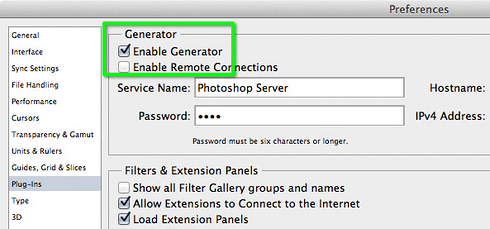
Note: A number of web sites say that to enable Generator you should choose File > Generate > Image Assets. What some don’t mention is that if the Generate command is unavailable (dimmed on the File menu), go into Preferences, click Plug-ins, and turn on Enable Generator.

Photoshop CC Plug-ins preferences

In this release Generator is not yet ideal. For example, while you can assign a scaling factor to export assets for Retina/HiDPI displays, there are reports that scaling does not take advantage of additional resolution that may be available in Smart Objects. Also, assets appear to be exported only to the bounds of non-transparent objects, with no provision for padding or exporting the entire canvas size of the layer.

In Generator we see two edges of the Creative Cloud sword. Great new features will roll out faster, but possibly with an iterative approach as we’ve seen with many web-based services: The initial release may be allowed to be a little rough around the edges so that the feature can be released more quickly, but for some users an incomplete implementation may be perceived as unrealized potential until a future release fully addresses their workflows. Maintaining the value of the “new features faster” aspect of Creative Cloud depends on how well each new feature rollout successfully balances the competing interests of rapid release and depth of implementation.

Generator is an interesting case because Adobe has made it open source, so if you’re a programmer you may not have to wait until the next update. Just dive right in and make the plug-in do what you want.

Additional enhancements

In Photoshop CC 14.1 Adobe added more options for Shake Reduction, added Range and Fuzziness control to the Highlight/Midtones/Shadows options in Color Range (here’s a great article on that by David Barranca), and added 32-bit support for more filters. There’s also a new option for controlling the layers on which the Path Selection or Direct Selection tools can select paths; Julianne Kost has an article about that. Martin Evening has a very comprehensive free PDF guide to Photoshop CC 14.1 explaining many of the changes; highly recommended reading!

You can now assign a custom keyboard shortcut to enter or leave Layer Isolation Mode. Some users have asked what the shortcut is, and the answer is that you need to assign the custom shortcut you want. The reason is that all keys on the keyboard are already assigned to shortcuts, so assigning a shortcut to isolation mode means you’ll take it away from another feature. Appropriately, that decision is left to you.

That’s just a partial list; for a complete list of changes in Photoshop CC 14.1, see What’s New in Photoshop CC, September 2013 in Photoshop Help.

Issues and fixes

Some users have reported that Photoshop 14.1 disables a graphics card (GPU) that worked fine in earlier versions. There’s an Adobe Community forum thread that shows and describes the error. If you’re having this issue, read post #6 by Pete Green of Adobe asking for more information to help locate the cause. (update) Adam Jerugim of Adobe has posted a workaround that seems to help.

[Update, September 12, 2013] Adobe released Photoshop 14.1.1 that is supposed to fix the GPU problem,  a problem where installing 14.1 would reset preferences, and possibly other issues.

[Update, September 25, 2013] Adobe released Photoshop 14.1.2 containing a few minor fixes. For details, see Photoshop 14.1.2 Update in a blog post by Jeff Tranberry of Adobe.

How to get the update

To update from Photoshop, start Photoshop CC and choose Help > Updates.

or:

To update through Adobe Creative Cloud: Start Adobe Creative Cloud if it isn’t running, and it should indicate that an update is available for Adobe Photoshop CC.

Apple fixes MacBook Air problem that caused Photoshop screen flickering

MacBook Air image courtesy Apple Inc.

If you’ve experienced screen flickering when using Photoshop on a mid-2013 MacBook Air, you’ll want to download and install MacBook Air (Mid 2013) Software Update 1.0 as this was apparently a bug on the Apple side. The update fixes a few other problems as well, such as improving wireless connectivity.

Lightroom 5 released

Adobe Photoshop Lightroom 5 Develop module

Adobe Photoshop Lightroom 5 has been officially released. In my experience it’s as bit more responsive than Lightroom 4. Want to learn more about it? Start here:

Announcement on the Lightroom blog at adobe.com

Hot Issues on the Lightroom blog

Adobe list of learning resources at adobe.com

Before you order an upgrade, remember to check all of your professional memberships and educational associations to see if discounts on Adobe software are part of your membership. In particular, if you have an Adobe Creative Cloud subscription, the upgrade is included with your subscription and available immediately; use the Creative Cloud desktop application to download it. By itself, Lightroom 5 is a $79 upgrade.

Mac App Store upgrade: If you look for Lightroom 5 at the Mac App Store, it isn’t there. Adobe has a tech note providing information about how to upgrade Lightroom 4 from the Mac App Store to Lightroom 5. It says “If you purchased Lightroom 4 from the Mac App Store and want to upgrade to Lightroom 5, purchase the upgrade from Adobe or another vendor.” The Lightroom 5 upgrade installer will recognize your Mac App Store license and upgrade it.

Adobe doesn’t say why Lightroom 5 is not available on the Mac App Store. It could be because the Mac App Store does not provide a paid upgrade path. The Mac App Store allows apps to be sold for only one price with free updates; upgrade discounts and free trials are not allowed by Apple. It’s also possible that Lightroom 5 has not yet been coded for the special requirements of the Mac App Store, but Adobe has not said whether Lightroom will return to the Mac App Store. Buying from the App Store has the advantage of easy installation and use on up to 5 Mac computers, but updates tend to take a little longer to appear than from Adobe because of the App Store approval process.

Potential gotchas

List of known problems. Review both the Known Issues listed at the end of the Lightroom blog post linked above, and also the Hot Issues blog post linked above.

If you post a lot of small photos to web sites, blogs, social media, or email, and if you shoot a lot of images at high ISO speed settings, you may want to delay upgrading to Lightroom 5 because one of the known issues is this: “Images exported at less than 1/3 of their original size may not retain Output Sharpening and Noise Reduction settings.”  It may not be a problem for you if you don’t apply output sharpening or noise reduction to most of your images, or if you upload/share full-size images. I ran into this issue and had to work around it by first exporting images from Lightroom 5 at full size so that noise reduction would be applied, and then I imported those into Lightroom 4 so that output sharpening would be applied when I exported them to the final small JPEG files.

Before you convert a catalog from an earlier version of Lightroom, optimize it and back it up! This can help prevent problems during conversion. To optimize, choose File > Optimize Catalog. When backing up, if you don’t want to turn on automatic backups, in the Catalog Settings dialog box you can select When Lightroom Next Exits and it will back it up just that one time, while also checking the catalog for integrity.

If you open raw files from Lightroom 5 into Photoshop, keep in mind that the raw processing engine inside Lightroom 5 is now ahead of the one in Camera Raw 7, which comes with Photoshop CS6. To successfully preserve the raw settings from Lightroom 5 in Photoshop CS6 or later, you’ll need Camera Raw 8 or later. You can now download Adobe Camera Raw 8.1 now by choosing Help > Updates in Photoshop CS6, from the Creative Cloud desktop application if you’re an Adobe Creative Cloud subscriber, or by direct download (choose Camera Raw from the Find Product Updates pop-up menu).

Mac version requires OS X 10.7 or later. With Lightroom 5, the system requirements have moved up so that your Mac must be running OS X 10.7 (Lion) or later before you  are allowed to install it. Many users have been using Lightroom 4 on a workstation running 10.6.8 Snow Leopard because Snow Leopard is a familiar, stable release, and when Lion first came out there were bugs in areas such as printing that caused many creatives to stay with Snow Leopard. Well, it’s two years later and time to let go of that anxiety. While some dislike the iOS-like additions to Lion and Mountain Lion, I have found that much of that can be switched off and I’m comfortable with the Mountain Lion experience on my MacBook Pro.

If you are a Creative Cloud subscriber and Lightroom 5 does not appear in the Creative Cloud desktop application as available for installation, one reason may be that the Mac does not meet the Lightroom 5 system requirements. It actually took me a few minutes to figure this out after wondering why Lightroom 5 wasn’t listed on one of my Macs; I finally realized that Mac runs Snow Leopard and needs to be upgraded.

(To put this in context, Lightroom’s direct competitor Apple Aperture dropped Snow Leopard support a year ago when Aperture 3.3 was released in June 2012. Snow Leopard users were supported for a significantly longer time by Adobe than by Apple itself.)