Adobe Camera Raw

Updates: Adobe Camera Raw 7.1 and Adobe Photoshop Lightroom 4.1

Photoshop CS6, Camera Raw 7, and Lightroom 4 icons

Adobe has released Camera Raw 7.1 and Lightroom 4.1 with the same raw processing updates for both, and with a corresponding update to DNG Converter, the utility that among other things can bring the latest camera raw support to versions of Photoshop before Photoshop CS6. All are free updates for current licenses of the software.

Along with the usual bug fixes and added support for new cameras (including the Canon EOS 5D Mark III and EOS 1D X, Fuji X-Pro1, and Nikon D4/D800/D800E) and new lens correction profiles, there are several new features that you can read about in a post at the official Lightroom Journal.

Probably the biggest new feature is the powerful new set of color fringe correction controls. You’ll find them in the Defringe section of the Color tab under the Lens Corrections tab, and you can learn how to use them in a very informative blog post at the Lightroom Journal.

New color fringe removal options in Camera Raw 7.1

In the release candidate version of Lightroom 4.1 I had experienced a problem with edges looking jagged when profile corrections were turned on, a problem discussed in the forums. After I installed this final version of Lightroom 4.1, the files with that problem appear to be fixed.

To download the update, go to:

http://www.adobe.com/downloads/updates/

or:

To update Photoshop and Camera Raw directly, start Photoshop and choose Help > Updates.

To update Lightroom, start Lightroom and choose Help > Check for Updates. If you bought Lightroom through the Mac App Store, the update may take a longer to become available there because it has to wait for Apple approval.

Updates: Adobe Camera Raw 6.7 and DNG Converter 6.7

Adobe has released Camera Raw 6.7 and DNG Converter 6.7. This release is important for Photoshop CS5 users who use Lightroom 4. What’s notable in this release:

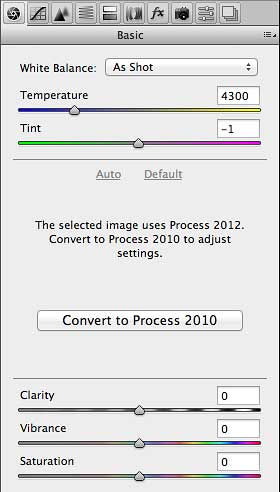
  • You can preserve edits made using Process Version 2012 in Lightroom 4 in a raw file you’ve imported into Photoshop CS5 as a Smart Object. However, you won’t be able to change Basic panel develop settings unless you switch back to Process Version 2010, as shown in the figure below. If you want to import Lightroom 4 raw files as Smart Objects into Photoshop and then edit them using Process Version 2012, you’ll need Adobe Camera Raw 7, which is available only with Photoshop CS6.

Raw image from Lightroom 4 as Smart Object in Photoshop CS5 with Adobe Camera Raw 6.7

  • You can import raw formats from new cameras such as the Canon EOS 1D X, Canon EOS 5D Mk III, Nikon D4, Nikon D800, Nikon D800E
  • More lenses have been added to the list of lens correction profiles.

For more information about new features and bug fixes, read the blog post by Lightroom product manager Tom Hogarty:

Lightroom Journal: Adobe Camera Raw 6.7 and DNG Convertor 6.7 Now Available on Adobe.com

As usual, you can read the release notes and download the installers from

http://www.adobe.com/downloads/updates/

or:

To update Photoshop and Camera Raw directly, start Photoshop and choose Help > Updates.

Also as usual, DNG Converter is useful for bringing the latest camera raw support to versions of Photoshop before Photoshop CS5.

Photoshop CS6 public beta is ready for you to download and try out

Adobe has posted a free public beta of Adobe Photoshop CS6! You can download it from Adobe. [Update: Because the final CS6 software shipped in May 2012, the beta software link now redirects to the Photoshop product page where you can download the free trial version of Photoshop CS6, or buy it.] That page contains the download link, important information, and links to resources for learning Photoshop CS6.

Lightroom users: Photoshop CS6 contains Camera Raw 7, which includes full compatibility with the new Develop module controls in Lightroom 4.

Among the first to report on Photoshop CS6 are Digital Photography Review and Macworld.

Remember, this is a prerelease version. Read the public beta page carefully, and back up any irreplaceable images before editing them with pre-release software. Have fun!

Watch my free Photoshop CS5 webcast, October 19 on CreativeEdge

Register now for the free Creative Edge webcast: Real World Adobe Photoshop CS5 for Photographers

A lot has happened in the Photoshop universe since I published Real World Adobe Photoshop CS5 for Photographers, so get caught up by joining me for a free CreativeEdge webcast on October 19, 2011. In addition to talking about some of the latest developments in Photoshop land, I’ll show you some of my favorite performance and productivity tips to help you get the most out of Photoshop CS5 and Adobe Camera Raw, including features that I feel have been overlooked and under-appreciated. I’ll also talk about Photoshop and social media, and protecting your images online.

That’s Thursday, October 19, 2011 at 10 a.m. Pacific time. Be sure to register by clicking the link below or the banner above. See you there!

Register for the Real World Adobe Photoshop CS5 for Photographers webcast on CreativeEdge

Stage lighting: Revealing hidden details with white balance

…or, This is Totally Why I Shoot Raw

Concerts and other stage performances are often lit by colored gels or LEDs that change quickly. Even auto white balance won’t know what to do as the lighting pattern changes and goes to extremes, such as deep blue or red. Faces can appear as as one solid color with no detail, as in the first picture below.

Fortunately, raw format brings us a nice surprise here. I shot the following raw image during the American tour of the French retro-synthpop band Yelle, and at first glance it looks like the faces are nothing but blue blobs. Happily, it turns out that shifting the white balance value in a raw processor (I used Adobe Photoshop Lightroom 3) reveals dramatically more detail; it’s like a completely different picture.

Raw, white balance As Shot

Raw format, white balance As Shot: Faces are blank

Raw, white balance adjusted

Raw format, white balance adjusted…and details are magically revealed

What I think is going on is that they were in the blue light’s shadow but the warmer red light was at a better angle for their faces. Warming up the white balance de-emphasized blue and dug more red out of the raw file, so that the red light became the primary light source. If I’m right, it means this trick works only if at least one of the differently colored light sources is at an angle that’s favorable to the subject.

This technique doesn’t work at all with the JPEG version of the image shown below, because the RGB color values are already baked into the file. You can no longer get more red, you can only lose blue, so shifting the white balance of the JPEG image doesn’t reveal any useful new details.

JPEG exported from raw with As Shot white balance, and then adjusted

JPEG version also starting from As Shot white balance: Adjusting WB doesn't help

In a situation where white balance holds steady or changes slowly, you might be able to achieve the same quality in JPEG format by doing a custom white balance in camera. However, in an environment like a concert or even a wedding where the light and the action change so quickly, there’s simply no time to rebalance, so shooting raw is the only way to get the most out of your images later.

You might notice that for the JPEG format image, the WB scale is centered at zero and adjusted positive and negative to that. It’s a relative adjustment instead of the absolute color temperature value that’s available in raw, because for a JPEG image, the original white balance is now baked permanently into the image, providing less flexibility when editing. That’s a big reason I shoot in raw format. I even prefer pocket cameras that record in raw format (like the Panasonic DMC-LX3 I used to take this photo), so that I can rescue images like this one when needed.

What if you’re shooting with a camera that records only in JPEG format, or with a video camera? You’re stuck with what the camera gives you. The best white balance setting will depend on the white balance of the stage lights before colored gels are put on them. Older incandescent lights may be closer to tungsten white balance, while some LED lights may be balanced closer to daylight. You’ll have to try some test shots using the daylight or tungsten white balance presets, and see which setting produces more appealing images. Or, if you’re able to light up a white surface with pure white stage lights, you can try setting a custom white balance off of that.