Apple

Fix problems with menu bar utilities

When an item on the right side of the menu bar isn’t working right (Spotlight, the Airport icon, or something you added to the menu bar), you can often fix it without having to restart the computer.

Menu bar

Menu bar utilities are handled by a process called SystemUIServer. If you restart that process, everything on the right side of the menu bar reloads, which usually fixes any problems there.

To restart SystemUIServer:
1. Open Activity Monitor (It’s in the Utilities folder).
2. If you don’t see the Activity Monitor window, choose Window > Activity Monitor.
3. In the list, select SystemUIServer. If the list is long and SystemUIServer is hard to find, enter the name into the Filter box at the top of the Activity Monitor window.
4. With SystemUIServer selected, click the Quit Process button (or choose View > Quit Process), and then click the Quit button.

You’ll see SystemUIServer reappear in the list, because OS X restarts it automatically. The items at the right side of the menu bar should disappear, and then reload. In most cases, the problematic menu bar item should work correctly now.

If that doesn’t work, try logging out and then back in.
If that doesn’t work, try restarting.

The reason I don’t suggest logging out or restarting as a first course of action is that if you’re like me, you’ve constantly got multiple documents open in multiple applications and you don’t want to close it all down and set it all back up if it isn’t necessary.

Today I clicked on the Spotlight icon in the menu bar and it highlighted, but the Spotlight search menu wouldn’t appear. Restarting SystemUIServer fixed it, as usual.

Activity Monitor is a good place to quit or restart any process that doesn’t have its own Quit command.

And a final tip…you can rearrange most menu bar items by Command-dragging them. (Some menu bar items that appear at the left end may be put there by applications and can’t be rearranged.) You can also remove a menu bar item by Command-dragging it off the menu bar.

MacBook: Won’t start, flashing sleep light

If you turn on a MacBook when it’s completely powered off (not sleeping), and instead of starting up, the screen remains dark and the sleep light is blinking, the MacBook’s RAM might not be installed properly or might have worked loose. I found this out when re-seating the RAM of a friend’s MacBook to try and fix a problem. I thought I had pushed the RAM modules far enough into their slots, but after the MacBook failed to start up I took another look and found out that you really do have to push firmly and carefully past some initial resistance until the RAM goes in all the way. You may have to push harder than you think is normal, but seriously, you have to push pretty hard.

If your MacBook has metal levers near the RAM, don’t use the levers to do this. The levers are only for popping out the RAM, not inserting it.

I wasn’t able to find a tech note at the Apple site about this, and that’s why this entry exists. In case it helps someone.

(Update: It seems like this applies to newer Macs such as the unibody aluminum MacBook Pro line and the iMac, although I haven’t tried it myself. However, it won’t work with a MacBook Air or a MacBook Pro with Retina Display, because on those models the RAM is permanently soldered to the motherboard.)

Force shutdown / restart in Mac OS X

First see if it’s just one program, or the whole machine. If the foreground program is unresponsive, before you force a restart check to see if other programs still work, because a lot of times, only one program is stuck and the rest of the system is OK. It’s actually very rare for all of OS X to freeze up. Try switching to the Finder or another program in the Dock or by pressing Command+Tab to use the Application Switcher. If these work, your whole system is not frozen, only the foreground program is.

Forcing just one program to quit. Use the Force Quit command from the Apple menu (or press Option+Command+Esc) to select the unresponsive program and make it quit. This is the Mac version of the Ctrl+Alt+Del “three finger salute” in Windows.

Force Quit Application dialog box

Forcing the entire system to shut down. If you cannot switch to other programs and you can’t choose the Shut Down command on the Apple menu, force a shutdown by holding down the Power button; don’t let go until the machine powers off. To verify that it really is shut down, press one of the keys that lights up, like Caps Lock or Num Lock. If the key’s LED lights up, power is still on. After you are sure the machine is fully off, press the Power button to start up normally. For an emergency restart on a notebook while the machine is still running, press Command+Ctrl+Power. Using either method, any unsaved changes in open documents will be lost.

Holding the Power button to force an immediate complete shutdown works on many Macs and PCs, and also works on a lot of electronic devices in general. Use this technique only in an emergency.

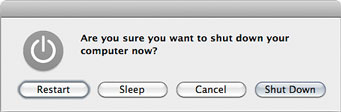
In normal use on a notebook, pressing the power button without holding it down is the same as choosing Shut Down from the Apple menu; either way, you see the dialog box below. (Apple changed this in OS X 10.9 Mavericks. To see this dialog box you have to hold down the power button for a few seconds.) On a desktop, the shortcut is Control+Eject. If those techniques bring up this dialog box, the machine is not frozen and you should not have to force shut down; you can just click the button you want.

A normal Shut Down dialog box

Failing to wake up from sleep mode. If a Mac doesn’t wake from sleep when it should, or pressing the Power button doesn’t start up a Mac that appears turned off, the computer may be in a state where the screen is blank but it’s still running. This sometimes happens when something’s gone wrong while a Mac was in or waking from sleep mode.

First press Caps Lock to see if it lights up. If it does, the machine is still on. In that case, press the Increase Screen Brightness button to make sure it’s not because the screen backlight is off. If none of that brings the screen to life but you know the machine’s getting power, your machine is in a sort of coma. You might as well do an emergency shutdown at this point.

Remote access. One other advanced user trick you can try is to log into the unresponsive Mac from another computer. This only works if it’s on the network and Remote Login is already turned on in the Sharing preference pane, and you’re familiar with how to log into other networked computers by typing commands into the Terminal utility. But if the machine is really hung up, that may not work either. Trying to get in via Screen Sharing/VNC usually doesn’t help because typically, if the normal user interface isn’t responding, Screen Sharing won’t either. It doesn’t hurt to try, though.

Safari: Open link as a tab in another Safari window

The shortcuts for opening a link in another tab in Safari are fairly well known. But you can also view a link in a tab in another browser window. First, arrange both browser windows so that you can see the tab area in the second window. Then, simply drag and drop the link into the tab area in the other window. You can also replace the contents of a tab by dragging a link onto the tab.

Deep-calibrate your PowerBook lithium-ion battery

Lithium-ion (li-ion) batteries work best when you partially empty them and then top them off. They don’t like to be emptied every time you use them. There is one exception: You should run your battery all the way down to empty about once a month. This ensures that the circuit that measures the battery capacity has an accurate idea of what “full” and “empty” are for your particular battery, since charge capacity decreases over time.

The standard advice for taking care of lithium-ion batteries comes from Apple and batteryuniversity.com.

When doing this kind of maintenance, most Apple laptop users simply use their laptop until Mac OS X automatically puts the computer into sleep mode. I’ve found that this doesn’t always leave the battery meter with an accurate reading of the battery capacity. However, I have found a way to empty and calibrate the battery more effectively.

I’ve noticed that my PowerBooks, when on battery power, run much longer when the iTunes visualizer is running full screen. When iTunes is in that mode, Mac OS X somehow seems to let iTunes bypass the usual automatic battery cutoff level, and forces sleep much later. To try this battery calibration method:

1. When you see a low-battery warning or when the battery level drops to around 5 minutes remaining, start iTunes.
2. Start playing your music library. It should be a long playlist (like the entire library) so that the playing time is definitely longer than the battery’s remaining time.
3. Make sure the Full Screen command is enabled under the Visualizer menu.
4. Choose Visualizer > Turn Visualizer On.
5. Wait.

You’ll probably find that iTunes keeps playing many minutes longer than the remaining time indicated by the battery meter. Eventually, Mac OS X will sleep the laptop. As a result of the longer runtime, the battery meter should indicate a longer life than it would have if you hadn’t extended the runtime with iTunes. Using CoconutBattery, I’ve confirmed that the number of milliAmp hours assumed by the Power Manager is higher after this procedure.

I don’t know why Apple keeps two different cutoff levels for sleep when on battery. It’s a mystery.