Apple hardware

Stuttering video playback on PowerBooks and iBooks

If you experience stuttering, jerky video playback on an Apple PowerBook or iBook, here are some ideas.

Check Energy Saver settings. Open your System Preferences and click Energy Saver. In Energy Saver, click the Options tab. Now check the setting for Processor Performance. If it’s set to Reduced, change it to Highest or Automatic. Video playback may be smooth now.

If you’re running on battery, be sure to change the Processor Performance setting back to Automatic or Reduced when you’re done watching video. The Highest setting drains the battery the fastest. Note that on a notebook, the Energy Saver preference lets you save different settings for Battery and Power Adapter.

You might see the effect of the Reduced setting any time you perform processor-intensive tasks such as audio or video rendering, or gameplay. In those situations, you’ll want to set Processor Performance to Automatic or Highest.

Note: The Energy Saver tip won’t work with MacBooks and MacBook Pros, because Intel CPUs automatically try to balance smooth playback against battery drain. The older PowerPC CPUs were not as smart.

Check for other processor hogs. If you set Processor Performance to Highest and you still see choppy performance, the cause may be another application that’s using processor cycles. Open your Activity Monitor utility, view the CPU tab, show all processes, and sort the list by %CPU to see if any applications are using an unusually high percentage of CPU cycles. While new computers can handle today’s streaming video easily, the same video demands almost all the CPU power available in older computers, so any unnecessary tasks can interrupt smooth video playback.

Watch out for HD video. If you have a PowerBook or iBook, you’ll probably have to avoid HD and choose the SD (standard definition) option when you watch Internet video. Smooth HD streaming works best with a recent Intel multi-core CPU. When PowerBooks and iBooks were made, Internet video was much lower quality and there was no high-definition streaming. As CPUs got faster, what made high-quality HD streaming possible were new codecs that made up for limited Internet bandwidth by leaning on the CPU in your computer to process the highly compressed stream. Newer Intel CPUs are optimized for those codecs, so they can decompress video files and Web streaming video very quickly without slowing down the whole computer.

But the G3 and G4 CPUs in PowerBooks and iBooks do not have those Intel optimizations (PowerPC G3 and G4 CPUs were not made by Intel), so they are are too old and slow to decode HD without stuttering. A PowerBook G4 might have a CPU running at 1GHz, while a MacBook Pro has multiple multimedia-optimized CPU cores running at over 2GHz each. Even an old, used MacBook Pro has many times the processing power of a PowerBook G3 or G4.

Also, check the speed of your connection to the Internet. You need a fast enough connection to stream HD smoothly. My old Internet connection was too slow for HD streaming, forcing me to watch SD streaming even on my newest Mac, or let HD video buffer longer before I play it back. My current Internet connection is capable of carrying HD video data fast enough for smooth playback on a computer that’s fast enough to decode it.

Mac Pro: Why four hard drive bays are great for Photoshop

Apple announced the new Mac Pro tower this week. For a Photoshop user, the Mac Pro’s quad SATA hard drive bays are just as useful as the quad cores of the two Xeon CPUs.

Why would a Mac Photoshop user need to use up four drive bays? Actually, it isn’t that hard. First, we know drive number 1 is the system drive that also contains all user folders and their documents. But I like to keep my photo archive on a drive other than the system drive, partly because it’s huge, but also so that if crazy things start happening to the system drive, my photo archive is less likely to be affected. This also simplifies backing up the entire archive to one of my external archive mirror drives. Right now my photo archive is on an external drive, but if I buy a Mac Pro then the photo archive can go to internal drive number 2 and get some clutter off the desk.

I would use drive number 3 as a Photoshop scratch disk. Photoshop has its own virtual memory that’s independent of the virtual memory that OS X and Windows use, and it’s optimized for how Photoshop must deal with image data. If you want the best Photoshop performance, in addition to having tons of RAM you should also have a separate, fast hard disk that’s assigned as a dedicated Photoshop scratch disk (set this up in Preferences > Plug-Ins and Scratch Disks). Again, another disk inside the machine instead of on the desk.

What about the fourth drive bay? At the moment, I could leave it empty. But when Mac OS X 10.5 (Leopard) comes along sometime in the spring of 2007, it will include the Time Machine continuous backup feature, which requires a dedicated volume. Why not stick a drive in bay 4 and make it the Time Machine backup drive? That would be perfect.

Those aren’t even all of the possibilities. Some might take two or more of the bays and make a faster or safer RAID out of them, using Disk Utility or a RAID card.

And that’s it…all four internal bays of a Mac Pro quickly used up to help optimize Photoshop and also OS X 10.5 when it gets here. With all the drives that won’t have to sit in external cases on my desk, I might be able to get rid of a whole power strip.

MacBook: Won’t start, flashing sleep light

If you turn on a MacBook when it’s completely powered off (not sleeping), and instead of starting up, the screen remains dark and the sleep light is blinking, the MacBook’s RAM might not be installed properly or might have worked loose. I found this out when re-seating the RAM of a friend’s MacBook to try and fix a problem. I thought I had pushed the RAM modules far enough into their slots, but after the MacBook failed to start up I took another look and found out that you really do have to push firmly and carefully past some initial resistance until the RAM goes in all the way. You may have to push harder than you think is normal, but seriously, you have to push pretty hard.

If your MacBook has metal levers near the RAM, don’t use the levers to do this. The levers are only for popping out the RAM, not inserting it.

I wasn’t able to find a tech note at the Apple site about this, and that’s why this entry exists. In case it helps someone.

(Update: It seems like this applies to newer Macs such as the unibody aluminum MacBook Pro line and the iMac, although I haven’t tried it myself. However, it won’t work with a MacBook Air or a MacBook Pro with Retina Display, because on those models the RAM is permanently soldered to the motherboard.)

Force shutdown / restart in Mac OS X

First see if it’s just one program, or the whole machine. If the foreground program is unresponsive, before you force a restart check to see if other programs still work, because a lot of times, only one program is stuck and the rest of the system is OK. It’s actually very rare for all of OS X to freeze up. Try switching to the Finder or another program in the Dock or by pressing Command+Tab to use the Application Switcher. If these work, your whole system is not frozen, only the foreground program is.

Forcing just one program to quit. Use the Force Quit command from the Apple menu (or press Option+Command+Esc) to select the unresponsive program and make it quit. This is the Mac version of the Ctrl+Alt+Del “three finger salute” in Windows.

Force Quit Application dialog box

Forcing the entire system to shut down. If you cannot switch to other programs and you can’t choose the Shut Down command on the Apple menu, force a shutdown by holding down the Power button; don’t let go until the machine powers off. To verify that it really is shut down, press one of the keys that lights up, like Caps Lock or Num Lock. If the key’s LED lights up, power is still on. After you are sure the machine is fully off, press the Power button to start up normally. For an emergency restart on a notebook while the machine is still running, press Command+Ctrl+Power. Using either method, any unsaved changes in open documents will be lost.

Holding the Power button to force an immediate complete shutdown works on many Macs and PCs, and also works on a lot of electronic devices in general. Use this technique only in an emergency.

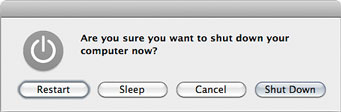
In normal use on a notebook, pressing the power button without holding it down is the same as choosing Shut Down from the Apple menu; either way, you see the dialog box below. (Apple changed this in OS X 10.9 Mavericks. To see this dialog box you have to hold down the power button for a few seconds.) On a desktop, the shortcut is Control+Eject. If those techniques bring up this dialog box, the machine is not frozen and you should not have to force shut down; you can just click the button you want.

A normal Shut Down dialog box

Failing to wake up from sleep mode. If a Mac doesn’t wake from sleep when it should, or pressing the Power button doesn’t start up a Mac that appears turned off, the computer may be in a state where the screen is blank but it’s still running. This sometimes happens when something’s gone wrong while a Mac was in or waking from sleep mode.

First press Caps Lock to see if it lights up. If it does, the machine is still on. In that case, press the Increase Screen Brightness button to make sure it’s not because the screen backlight is off. If none of that brings the screen to life but you know the machine’s getting power, your machine is in a sort of coma. You might as well do an emergency shutdown at this point.

Remote access. One other advanced user trick you can try is to log into the unresponsive Mac from another computer. This only works if it’s on the network and Remote Login is already turned on in the Sharing preference pane, and you’re familiar with how to log into other networked computers by typing commands into the Terminal utility. But if the machine is really hung up, that may not work either. Trying to get in via Screen Sharing/VNC usually doesn’t help because typically, if the normal user interface isn’t responding, Screen Sharing won’t either. It doesn’t hurt to try, though.

Deep-calibrate your PowerBook lithium-ion battery

Lithium-ion (li-ion) batteries work best when you partially empty them and then top them off. They don’t like to be emptied every time you use them. There is one exception: You should run your battery all the way down to empty about once a month. This ensures that the circuit that measures the battery capacity has an accurate idea of what “full” and “empty” are for your particular battery, since charge capacity decreases over time.

The standard advice for taking care of lithium-ion batteries comes from Apple and batteryuniversity.com.

When doing this kind of maintenance, most Apple laptop users simply use their laptop until Mac OS X automatically puts the computer into sleep mode. I’ve found that this doesn’t always leave the battery meter with an accurate reading of the battery capacity. However, I have found a way to empty and calibrate the battery more effectively.

I’ve noticed that my PowerBooks, when on battery power, run much longer when the iTunes visualizer is running full screen. When iTunes is in that mode, Mac OS X somehow seems to let iTunes bypass the usual automatic battery cutoff level, and forces sleep much later. To try this battery calibration method:

1. When you see a low-battery warning or when the battery level drops to around 5 minutes remaining, start iTunes.
2. Start playing your music library. It should be a long playlist (like the entire library) so that the playing time is definitely longer than the battery’s remaining time.
3. Make sure the Full Screen command is enabled under the Visualizer menu.
4. Choose Visualizer > Turn Visualizer On.
5. Wait.

You’ll probably find that iTunes keeps playing many minutes longer than the remaining time indicated by the battery meter. Eventually, Mac OS X will sleep the laptop. As a result of the longer runtime, the battery meter should indicate a longer life than it would have if you hadn’t extended the runtime with iTunes. Using CoconutBattery, I’ve confirmed that the number of milliAmp hours assumed by the Power Manager is higher after this procedure.

I don’t know why Apple keeps two different cutoff levels for sleep when on battery. It’s a mystery.