

Adobe said that moving to Creative Cloud would enable more frequent updates with new features, and so far that seems to be the case. Adobe Photoshop CC 14.1 is now out with various enhancements and fixes, including the ability to automatically export layers as web-optimized assets using the new Adobe Generator feature. Generator may simplify your workflow if you use Photoshop to design user interfaces for screen-based projects such as web sites, games, and mobile apps.
For a link to the full list of changes and to learn how to get the update, skip down to the end of this post.
Adobe Generator
The basic idea behind Generator is that you can have Photoshop export individual layers for on-screen assets like buttons and menus without having to slice or go through Save for Web. How you name a layer determines whether it exports automatically, and how it exports. For example, if you name a layer “200×100 button.jpg6” you’ll get a file called “button.jpg” that’s 200×100 pixels and exported to JPEG format at the quality level of 6. (Layer groups and smart objects work too.) Whenever you edit a layer named for automatic generation, Photoshop exports them in real time and in the background so you never have to see an export dialog box. Not only can Generator save time and mouse clicks, but the silent background exporting means that you can keep your mind continuously focused on design instead of having your train of thought interrupted by production chores and dialog boxes. The exported files end up in a folder at the same level as the original layered document.
Here’s an Adobe introduction to Generator:
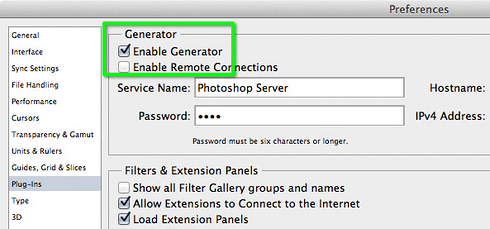
Note: A number of web sites say that to enable Generator you should choose File > Generate > Image Assets. What some don’t mention is that if the Generate command is unavailable (dimmed on the File menu), go into Preferences, click Plug-ins, and turn on Enable Generator.
In this release Generator is not yet ideal. For example, while you can assign a scaling factor to export assets for Retina/HiDPI displays, there are reports that scaling does not take advantage of additional resolution that may be available in Smart Objects. Also, assets appear to be exported only to the bounds of non-transparent objects, with no provision for padding or exporting the entire canvas size of the layer.
In Generator we see two edges of the Creative Cloud sword. Great new features will roll out faster, but possibly with an iterative approach as we’ve seen with many web-based services: The initial release may be allowed to be a little rough around the edges so that the feature can be released more quickly, but for some users an incomplete implementation may be perceived as unrealized potential until a future release fully addresses their workflows. Maintaining the value of the “new features faster” aspect of Creative Cloud depends on how well each new feature rollout successfully balances the competing interests of rapid release and depth of implementation.
Generator is an interesting case because Adobe has made it open source, so if you’re a programmer you may not have to wait until the next update. Just dive right in and make the plug-in do what you want.
Additional enhancements
In Photoshop CC 14.1 Adobe added more options for Shake Reduction, added Range and Fuzziness control to the Highlight/Midtones/Shadows options in Color Range (here’s a great article on that by David Barranca), and added 32-bit support for more filters. There’s also a new option for controlling the layers on which the Path Selection or Direct Selection tools can select paths; Julianne Kost has an article about that. Martin Evening has a very comprehensive free PDF guide to Photoshop CC 14.1 explaining many of the changes; highly recommended reading!
You can now assign a custom keyboard shortcut to enter or leave Layer Isolation Mode. Some users have asked what the shortcut is, and the answer is that you need to assign the custom shortcut you want. The reason is that all keys on the keyboard are already assigned to shortcuts, so assigning a shortcut to isolation mode means you’ll take it away from another feature. Appropriately, that decision is left to you.
That’s just a partial list; for a complete list of changes in Photoshop CC 14.1, see What’s New in Photoshop CC, September 2013 in Photoshop Help.
Issues and fixes
Some users have reported that Photoshop 14.1 disables a graphics card (GPU) that worked fine in earlier versions. There’s an Adobe Community forum thread that shows and describes the error. If you’re having this issue, read post #6 by Pete Green of Adobe asking for more information to help locate the cause. (update) Adam Jerugim of Adobe has posted a workaround that seems to help.
[Update, September 12, 2013] Adobe released Photoshop 14.1.1 that is supposed to fix the GPU problem, a problem where installing 14.1 would reset preferences, and possibly other issues.
[Update, September 25, 2013] Adobe released Photoshop 14.1.2 containing a few minor fixes. For details, see Photoshop 14.1.2 Update in a blog post by Jeff Tranberry of Adobe.
How to get the update
To update from Photoshop, start Photoshop CC and choose Help > Updates.
or:
To update through Adobe Creative Cloud: Start Adobe Creative Cloud if it isn’t running, and it should indicate that an update is available for Adobe Photoshop CC.


 conrad chavez | blog