First see if it’s just one program, or the whole machine. If the foreground program is unresponsive, before you force a restart check to see if other programs still work, because a lot of times, only one program is stuck and the rest of the system is OK. It’s actually very rare for all of OS X to freeze up. Try switching to the Finder or another program in the Dock or by pressing Command+Tab to use the Application Switcher. If these work, your whole system is not frozen, only the foreground program is.
Forcing just one program to quit. Use the Force Quit command from the Apple menu (or press Option+Command+Esc) to select the unresponsive program and make it quit. This is the Mac version of the Ctrl+Alt+Del “three finger salute” in Windows.

Forcing the entire system to shut down. If you cannot switch to other programs and you can’t choose the Shut Down command on the Apple menu, force a shutdown by holding down the Power button; don’t let go until the machine powers off. To verify that it really is shut down, press one of the keys that lights up, like Caps Lock or Num Lock. If the key’s LED lights up, power is still on. After you are sure the machine is fully off, press the Power button to start up normally. For an emergency restart on a notebook while the machine is still running, press Command+Ctrl+Power. Using either method, any unsaved changes in open documents will be lost.
Holding the Power button to force an immediate complete shutdown works on many Macs and PCs, and also works on a lot of electronic devices in general. Use this technique only in an emergency.
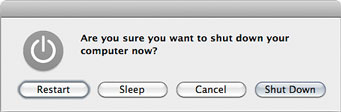
In normal use on a notebook, pressing the power button without holding it down is the same as choosing Shut Down from the Apple menu; either way, you see the dialog box below. (Apple changed this in OS X 10.9 Mavericks. To see this dialog box you have to hold down the power button for a few seconds.) On a desktop, the shortcut is Control+Eject. If those techniques bring up this dialog box, the machine is not frozen and you should not have to force shut down; you can just click the button you want.
Failing to wake up from sleep mode. If a Mac doesn’t wake from sleep when it should, or pressing the Power button doesn’t start up a Mac that appears turned off, the computer may be in a state where the screen is blank but it’s still running. This sometimes happens when something’s gone wrong while a Mac was in or waking from sleep mode.
First press Caps Lock to see if it lights up. If it does, the machine is still on. In that case, press the Increase Screen Brightness button to make sure it’s not because the screen backlight is off. If none of that brings the screen to life but you know the machine’s getting power, your machine is in a sort of coma. You might as well do an emergency shutdown at this point.
Remote access. One other advanced user trick you can try is to log into the unresponsive Mac from another computer. This only works if it’s on the network and Remote Login is already turned on in the Sharing preference pane, and you’re familiar with how to log into other networked computers by typing commands into the Terminal utility. But if the machine is really hung up, that may not work either. Trying to get in via Screen Sharing/VNC usually doesn’t help because typically, if the normal user interface isn’t responding, Screen Sharing won’t either. It doesn’t hurt to try, though.


 conrad chavez | blog