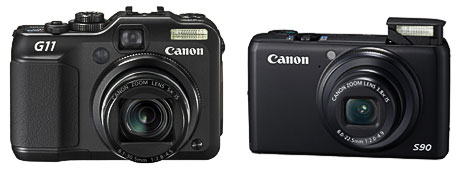
Canon announces PowerShot G11 and S90 compacts

20090819_loRes_g11_s90_front
I don’t write about every camera announcement, but these two are noteworthy. While Canon announced six new compact cameras on August 19, there were two in particular that I knew my friends and I would be interested in. The PowerShot G11 is the successor to the G10, a rather large compact with professional features. The PowerShot S90 resurrects the S-series that had more manual control and capabilities that most other point-and-shoots. These announcements affect me since I’m in the market to replace my 5-year-old Canon point-and-shoot, but there’s also quite a bit of intrigue behind this particular set of upgrades.

Please note that this post is not a review, but a commentary on the announcement. The cameras will be available in September 2009.

The Megapixel Wars: Over?

For several years, Canon ratcheted up its megapixel counts like all the other camera companies: 12 megapixels in the G9, 14 megapixels in the G10. But photographers increasingly complained (and rightly so) that not only did more megapixels not guarantee better images by themselves, in some cases they hurt image quality through increased noise. And at the same time making file sizes larger, which reduced the effective capacity of memory cards, hard drives, and CPUs.

Then last year, Panasonic came out with the Lumix DMC-LX3. Many were surprised that it held the pixel count to just 10 megapixels while all other companies raced upwards. That, and the fact that it has a relatively fast lens, may be the reason it also produces images that are thought by many to be better than the G10 in low light. It also has a wider wide end than many compact cameras, which makes it more useful for indoor use. For these reasons plus its raw output capability, many photography enthusiasts embraced the LX3 and it’s been back-ordered for many months. I thought it would be my next compact camera, but I can’t get one. The specific improvements to the Canon PowerShot G11 and S90—faster lens, better low light performance, more reasonable megapixels, and a shocking drop down to 10 megapixels—resemble the strong points of the LX-3 so much that one has to ask: Did the apparent popularity of the LX-3 make it enough of a threat for Canon to have to defend against the LX3 directly? Did Canon believe that they could not continue to maintain image quality from such small sensors if the pixel count went up further?

I think there may be more to it than that, since Canon also decided to bring back the swivel screen to the G series and the raw format to the S series. Now that more people use their camera phone as their point-and-shoot, did Canon feel they had to provide (or restore) more value in the compact range so that serious photographers would have a reason to buy a camera between a JPEG-based point-and-shoot and a digital SLR?

Comparing the PowerShot G11 to the PowerShot S90

With all that context in mind, you might want to compare the G11 and S90 since they’re so curiously similar. These two cameras use the same extended dynamic range sensor and new Digic 4 processor going up to ISO 3200, and both can save in raw format. Here are a few of the important differences between them.

Reasons to get the Canon PowerShot G11 (list price USD$499) over the S90:

  • Hotshoe that supports Speedlites (and hopefully wireless triggers)
  • Longer telephoto range
  • Slower lens (f/2.8)
  • Better face detection
  • Closer focusing distance (1cm)
  • More ISO steps
  • Shutter speed up to 1/4000
  • Slightly faster frames-per-second burst rate

Reasons to get Canon PowerShot S90 (list price USD$429) over the G11:

  • Smaller size is a lot more pocketable
  • Faster lens (f2) for better low-light shooting
  • Slightly bigger LCD screen (same number of pixels, though)
  • Interesting control ring around the lens to which you can assign a function, such as ISO speed

The Canon Shell Game

With their point-and-shoots, Canon has a really annoying way of taking features away and adding them back in a later version with no apparent rhyme or reason. As the G series progressed, people noticed that the swivel screen went away. When the S80 came out, raw format support disappeared. Now both are back. The swivel screen has returned in the G11, and the S90 brings back the ability to save images in raw format.

So what’s missing? Both cameras are capable of only 640×480 30fps video, a strange underachievement in an era of at least 720p HD video on competing cameras. One imagines that video will get a boost in the next generation, but that Canon might once again take away something useful in exchange. Maybe one day Canon will put out a compact where all of the right features actually exist in the same model, but that hasn’t happened yet.

The Details

I’ve only talked about the aspects of these two new cameras that I found to be a notable departure from Canon’s usual pattern. For full details, check out the info at the Canon USA site:

Canon PowerShot G11

Canon PowerShot S90

Voting with Dollars

Which one will I choose? Good question. Canon now has two cameras which in theory should keep people from going over to the LX3. But in addition to the fact that we should wait for the reviews to roll in, the LX3 is a year old now, and with all the fall photo expos just around the corner, is Panasonic about to play their next card?…

The good news is that with the expansion of choice, it’s now harder to pick the wrong advanced compact camera.

(Update: I bought the Panasonic LX3 because the fast aperture is nearly constant throughout the zoom range, for the hot shoe, and for the 720p 16:9 video capability. And I’m pretty happy with it!)

Mac Pro: Annoying hard drive vibration fixed

For a while there had been an annoying buzz emanating from my Mac Pro. I knew it had something to do with a new hard drive I installed, and for a while I thought the drive might be defective, like an earlier one I had that was extremely loud before I returned it.

In this case, it turns out that I had not fully tightened one of the screws on the metal sled that you mount the drive on before sliding it into the case.

The way I found out was that I pulled the drive out of the computer and lightly rapped it with my finger; I could hear something slightly loose and thought it might be the bracket. After I tightened all the screws and slid the drive back into the case, the noise level was back down to normal.

Photoshop CS4/CS5: Restoring pre-CS4 channel shortcuts and curves

In Adobe Photoshop CS4, the keyboard shortcuts for viewing channels changed, and the Curves adjustment layer was implemented as a non-modal panel rather than a modal dialog box. While these changes were done for good reasons, many people are unhappy with them and wish they could do things as they did in Photoshop CS3 and before. Since Photoshop CS4 shipped, a couple of tools have emerged to roll back the changes to some extent.

Use Old Shortcuts plug-in

In Photoshop CS4 (for Photoshop CS5 see below), you can download and install a plug-in that restores the pre-CS4 shortcuts for viewing channels, where Command-1/Ctrl-1 is the composite view of channels. (In Photoshop CS4/CS5, Command-2/Ctrl-2 displays the composite channel view, and accordingly, the single-channel viewing shortcuts were all moved up one key.) The link to the plug-in is available from John Nack’s blog post “Use Old Shortcuts” plug-in now Universal. To install it, first unzip the downloaded file, identify the plug-in for your system (Mac or Windows), then drag it into the Plug-ins folder inside the Adobe Photoshop Cs4 application folder. It doesn’t matter where it is inside that folder.

In Photoshop CS5, you don’t have to use the plug-in to restore the channel shortcuts because there’s a built-in option that does the same thing. To use it, choose Edit > Keyboard Shortcuts and select the Use Legacy Channel Shortcuts check box.

Curves-Dialog panel

This is a panel that lets you add a new Curves adjustment layer or edit a selected Curves adjustment layer using a dialog box, as it was before Photoshop CS4. This panel was built as an extension using Adobe Configurator, and is again downloadable from John Nack’s blog (CS4 Curves Dialog panel) (CS5 Curves Dialog panel). To install it, first double-click to unzip it, then double-click the unzipped .mxp file. It should open in Adobe Extension Manager, which should install it into the right location automatically. You may need to download and install (or update) Adobe AIR for the extension to work. For more details, see John Nack’s blog post, Using a dialog box to edit a Curves adjustment layer.

Important: It’s still recommended that you learn the CS4/CS5 shortcuts and Curves adjustment panel workflow and shortcuts, because it’s the way future versions of Photoshop are likely to work. There is no guarantee that the plug-in or extension will still work or be upgraded to work with versions of Photoshop beyond CS4. Even though I’ve used Photoshop for many years, I’m using the new shortcuts, partly because I agree with the decision to make the Actual Pixels (100% magnification) shortcut (now Command-1/Ctrl-1) match other Adobe and Apple software.

InDesign: Watching for overset text on the last page

When you’re writing within a specific page count in InDesign, you probably want to know if you’ve run out of room at the end of the document. While InDesign provides an overset text indicator in a story’s last threaded text frame, you aren’t going to see that indicator as long as you’re writing on another page somewhere in the middle of the document.

On the last page of the document, there is overset text, but you want to edit many pages further back in the document.

On the last page of the document, there is overset text, but you want to fix it by editing many pages further back in the document.

The slow way to check that overset text indicator would be to go to the last page, look at the indicator, then choose Layout > Go Back to return to the page you were on. You may find it faster and easier to open a second document window displaying the last page of the document, and keep it around behind the window containing the page you’re actually editing. To set this up, choose Window > Arrange > New Window. Now you’re seeing the same document in two windows. In one of the windows, go to the last page in the document. You won’t be changing that window’s view.

The New Window command gives you a second window on the same document, which can display a different page.

The New Window command gives you a second window on the same document, which can display a different page.

Now switch to the first window; as you edit the text you can check on the last page at any time by switching to it and switching back. Of course, this is very fast if you use the Command+` (Mac) or Ctrl-` (Windows) keyboard shortcut to flip through the open windows in InDesign CS4, because InDesign won’t lose your text insertion point in either window. Just flip back to the original window to continue editing.

I use this so often that I used the Edit > Keyboard Shortcuts dialog box to create a keyboard shortcut for Window > Arrange > New Window. When I want to create a last page window, I just press the shortcut for New Window, press the End key to get to the last page, and press the window switch shortcut to get back to editing. Once it’s set up, whenever I want I can press the window switch shortcut a couple of times, once to check my story length and again to return to editing.

If you want to simultaneously view both the page you’re editing and the last page of the document, you can use the window management commands in InDesign. If you using floating (not tabbed) documents in InDesign CS4 you can choose Window > Arrange >  Tile. If you’re using tabbed documents, you can click one of the n-up options in the application bar to instantly display both views tiled side-by-side. The only reason I first talked about flipping between two overlapping windows is because I usually prefer to use the entire monitor to see a double-page spread at once, but if you have own a very large monitor you might prefer to tile your documents so you can see them together.

When you're using tabbed documents and Window > Application Frame is on, you can click the 2-Up button on the Application Bar. If you're using floating windows instead, choose Window > Arrange > Tile.

When you're using tabbed documents and Window > Application Frame is on, you can click the 2-Up button on the Application Bar. If you're using floating windows instead, choose Window > Arrange > Tile.

With two views, you can edit a page in the middle of the document while watching for the overset text indicator to go away on the last page.

With two views, you can edit a page in the middle of the document (left) while watching for the overset text indicator to go away on the last page (right).

Epson inkjet printers: Printer preset forgets settings

If you use an Epson Stylus Photo/Epson Stylus Pro printer in Mac OS X and you save printer settings as printer presets (a recommended practice), there may be times when you choose a preset and realize that some of the settings mysteriously deviate from the way you saved them. For example, you might swear that you saved the Printer Color Management setting as No Color Management, but it somehow turns itself back on when you apply a preset. Other symptoms are finding the wrong paper type or color settings selected. And even more mysteriously, you might notice that sometimes it does remember the same settings that it forgot on another occasion.

I don’t know if this applies to all printers in OS X, but presets for Epson photo printers are quite sensitive to the conditions under which they were created—and unexpectedly, this can include the state of settings that are outside the Print dialog itself. Pay particular attention to the settings in the Page Setup dialog box.

For example, I once discovered that reason my Epson 3800 printer presets would not remember my color settings was that the current paper source did not match the paper source that was in effect when I created the preset! I’ve had to make two versions of my favorite presets: One preset for when I’m using the automatic paper feeder, and another for when I’m using the manual feed slot. The settings saved in each preset are exactly the same; the only difference is which paper feed is selected when I save each preset. Of course, I have to mention the paper source in each preset’s name, so that I know which one to select.

I have not yet tested if this behavior is the same in Windows.

This interaction between paper source and printer presets is yet another reason to make sure you always check the Page Setup dialog box before you print, and especially before you print a Photoshop document for the first time. In Page Setup, the selected printer, paper size, and paper source affect what you get to do in the Print dialog box. If you don’t get Page Setup right from the beginning, you’re setting yourself up for confusion when you print.

Lightroom. If you’re trying to get Epson printer driver settings to stick in Adobe Photoshop Lightroom on Mac OS X when you save a Lightroom printer preset, the trick is to not use the Epson printer driver presets. Instead, leave the printer preset set to Standard, make the printer driver settings,  and then save the Lightroom printer preset.