Digital Photography

Epson inkjet printers: Printer preset forgets settings

If you use an Epson Stylus Photo/Epson Stylus Pro printer in Mac OS X and you save printer settings as printer presets (a recommended practice), there may be times when you choose a preset and realize that some of the settings mysteriously deviate from the way you saved them. For example, you might swear that you saved the Printer Color Management setting as No Color Management, but it somehow turns itself back on when you apply a preset. Other symptoms are finding the wrong paper type or color settings selected. And even more mysteriously, you might notice that sometimes it does remember the same settings that it forgot on another occasion.

I don’t know if this applies to all printers in OS X, but presets for Epson photo printers are quite sensitive to the conditions under which they were created—and unexpectedly, this can include the state of settings that are outside the Print dialog itself. Pay particular attention to the settings in the Page Setup dialog box.

For example, I once discovered that reason my Epson 3800 printer presets would not remember my color settings was that the current paper source did not match the paper source that was in effect when I created the preset! I’ve had to make two versions of my favorite presets: One preset for when I’m using the automatic paper feeder, and another for when I’m using the manual feed slot. The settings saved in each preset are exactly the same; the only difference is which paper feed is selected when I save each preset. Of course, I have to mention the paper source in each preset’s name, so that I know which one to select.

I have not yet tested if this behavior is the same in Windows.

This interaction between paper source and printer presets is yet another reason to make sure you always check the Page Setup dialog box before you print, and especially before you print a Photoshop document for the first time. In Page Setup, the selected printer, paper size, and paper source affect what you get to do in the Print dialog box. If you don’t get Page Setup right from the beginning, you’re setting yourself up for confusion when you print.

Lightroom. If you’re trying to get Epson printer driver settings to stick in Adobe Photoshop Lightroom on Mac OS X when you save a Lightroom printer preset, the trick is to not use the Epson printer driver presets. Instead, leave the printer preset set to Standard, make the printer driver settings,  and then save the Lightroom printer preset.

Epson inkjet printers: Solving paper feed problems

If paper doesn’t feed through your Epson printer, look out for the following:

Leading edge problems. If there’s anything wrong with the leading edge of the paper (the edge that goes in first), the printer may not be able to load it. Check for creases, folds, tears, or other damage. Proper loading depends on the leading edge being perfectly even, so that it goes straight into the rollers. If the leading edge is damaged, try turning the paper around and loading the edge on the opposite side instead. If for some reason that’s not practical, do your best to smooth out the edge. This problem is more likely to happen with paper that was reused or damaged.

Paper curl. If the paper curls the wrong way (outward compared to the rollers), the printer rollers might not be able to grab it. Remove the paper and see if it has a curl at the edge. If it’s printable on both sides you can try printing on the other side so that the curl goes the other way. If it’s coated on only one side, you’ll have to carefully try to de-curl it. If it’s expensive fine-art paper, use great care to avoid creasing it or leaving fingerprints when you try to remove the curl. The expensive solution is to use a deroller; this is typically used by people who buy paper in rolls since those tend to make the curl quite persistent.

Friction with other sheets. If you’re loading multiple sheets at a time, the frontmost sheet might not drop into the rollers if it sticks a little to the next sheet in the stack. Try jostling and fanning the paper stack to loosen them up. This is more of a problem with papers with some types of coatings and textures.

Dirty rollers. House dust or dust from matte or rough fine art papers can build up on the rubber rollers, reducing their grip and making it harder for them to grab the paper. If a cleaning sheet is available for your printer you can try that. If you don’t have a cleaning sheet, try picking up the dust off the rollers by pressing a piece of moderately sticky paper on them. (Don’t use something that’s so sticky it might ruin the rollers, like packing tape, address labels, or duct tape.)

If the printer continues to have trouble grabbing the paper, as the print job starts try holding the paper and give it a slight nudge in as it loads.

Narrow paper. On the Epson Stylus Pro 3800, the manual feed slot doesn’t like paper that’s much narrower than a US Letter sheet. You’ll have to feed it through the automatic feeder. But the automatic feeder may have trouble with paper smaller than 4 x 6 inches; you may have to keep it straight with your hands as it drops into the slot.

Black area of paper. On the Epson Stylus Pro 3800, there’s an odd issue where the Epson 3800 may not sense the paper correctly if part of the paper is already covered with black. Read about that in this article: Epson 3800 error: Incorrect paper size or Paper error.

I’ve only used Epson printers, but those tips may also apply to other brands of inkjet printers.

Camera Raw: Detailed image inspection with one key

Camera Raw 4.1 and later add a very useful feature that appeared first in Lightroom. If you want to inspect an image closely for dust or other defects that need retouching, the Page Down key takes you through the entire image, from the top left corner to the bottom right corner. Here’s how it works:

1. In Camera Raw, zoom to 100% view or higher.
2. Press the Home key to view the top left corner of the image.
3. Press the Page Down key to move down one screen.
4. Press Page Down again to move down another screen. This is the cool part: If you hit the bottom of the image and press Page Down, Camera Raw automatically jumps to the top of the image one screen to the right! This means that all you have to do to check the entire image is keep pressing Page Down, until you reach the bottom right corner of the image.

On notebook computers without separate Home, End, Page Up, or Page Down keys, remember that they may be available as second functions on your arrow or other keys. For example, on Mac notebooks, these four functions are overlaid on the four arrow keys, and invoked when you also press the Fn (function) key. So to use Page Down, you’d press Fn+Down Arrow.

Open Raw files in Adobe Camera Raw by default

If you use Adobe Camera Raw as your raw converter for digital camera raw files, you might want to be able to open your raw files in Camera Raw when you double-click them. For most files, you would do this in your operating system by changing which application opens the camera raw file type.

But with Camera Raw, there’s a catch. Camera Raw is not a standalone application, so you can’t associate it directly with a file type. It turns out that this is not a big deal, because Adobe Photoshop must open camera raw files in Camera Raw anyway. So the solution is to associate camera raw files with Photoshop. I show the steps below for Mac OS X; the steps for Windows are similar.

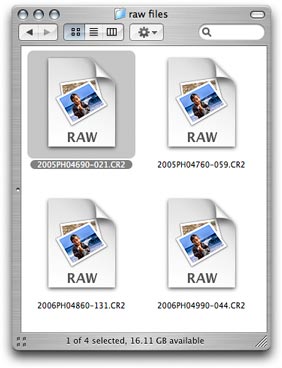
1. On the desktop, select a raw file of the type you want to open in Photoshop. I’ve selected a CR2 file from a Canon digital SLR.

Select a raw file

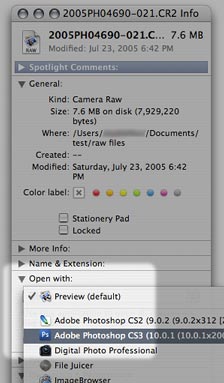
2. Choose File > Get Info (Command+I).

Open the Get Info window

3. From the Open With pop-up menu in the Get Info window, choose the version of Photoshop that you want to use to open your raw files.

Assign Photoshop to the file type

4. The file icon updates to indicate that Photoshop will now open it.

Icon indicates new association

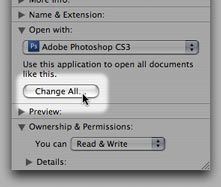
5. Click “Change All” so that your change applies to all files of the same type. Other file icons may not update immediately, but the change has taken effect. From now on, when you double-click that type of a raw file, it will open in Photoshop, which will then open it in Adobe Camera Raw.

Set this association as the default

Because the file association is tied to a specific file type, making this change affects only the file type you’ve changed. You’ll need to associate each different raw file type separately. For example, if you made this change for NEF (Nikon) raw files and then you later work with some CR2 (Canon) raw files, you’ll have to associate the CR2 files with Photoshop too.

(If you’re having trouble getting Camera Raw to see your raw files in the first place, try updating Camera Raw. Support for new cameras is added several times a year. Either download the latest version from adobe.com, or run the Adobe Updater utility that came with Photoshop. Note that the current version of Camera Raw may not work with older versions of Photoshop. If you are trying to edit a new camera’s raw files in a version of Photoshop that’s too old for the current version of Camera Raw, you should either upgrade Photoshop or use the free Adobe DNG converter to convert raw files to the DNG format, which older versions of Camera Raw can edit.)

Thanks to Céline C. for asking this question!

Apple keyboards are now safe for calibrated Apple LCD monitors

If you’ve carefully calibrated your monitor and you use the white Apple keyboard that came with the iMacs and Mac Pros, you may have encountered that nasty surprise when accidentally pressing the F14 and F15 keys: They change the monitor brightness.

Changing the monitor brightness is obviously a big no-no if you’re maintaining a color-managed environment, because the monitor no longer represents the conditions under which it was profiled. Even worse, you may not notice that you’ve hit the key, or you may not know how far off you changed the brightness. All you can do is re-profile the monitor. The constant risk of accidentally hitting F14 or F15 and invalidating your monitor profile is an unusual misstep for Apple, which promotes color management as a Mac platform advantage.

There used to be no way to disable or remap the F14 and F15 keys on the Apple keyboard, but thanks to newer hardware, it looks like this problem can now slowly fade into history. If you use the new slim aluminum Apple keyboard, you can require that the Fn key has to also be pressed to set brightness with F1 or F1. If you have the older white Apple keyboard, you can take advantage of new keyboard shortcut editing options in Apple Keyboard Software Update 1.1 or later.

Changing keyboard brightness control with the slim aluminum Apple keyboard

The slim aluminum Apple keyboard introduced in 2007 puts the brightness keys on the function row along with the Exposé, Dashboard, and media keys. Why is this good? Because now you can bury the brightness function. To do this:
1. Open System Preferences.
2. Click Keyboard & Mouse.
3. Click the Keyboard tab.
4. Click to enable the box “Use the F1-F12 keys to control software features.”
5. Close System Preferences.

After enabling the “Use the F1-F12 keys…” option, you must press the Fn key (to the right of the Delete key) to use F1-F12 to use the alternate labels on the F1-F12 keys, such as brightness and the media keys. That means if you accidentally hit F1, you won’t throw your system out of its calibrated state.

If you still want single-key access to Dashboard and others, just redefine their shortcuts. You can do this in the System Preferences pane for each feature (such as Dashboard & Exposé), or in the Keyboard Shortcuts tab of the Keyboard & Mouse preferences pane.

Changing or disabling keyboard brightness control with the white Apple keyboard

It turns out that Apple Keyboard Software Update 1.1 or later adds a keyboard shortcut option to disable or change keyboard brightness control for the older white Apple keyboard. To do this:

1. Open System Preferences.
2. Click Keyboard & Mouse.
3. Click the Keyboard Shortcuts tab.
4. Scroll all the way down to where it says Displays.
5. Disable the check box for “Display” Or, if you just want to change the shortcuts, click in the Shortcut column and press the new shortcut. For example, if you change Increase Display Brightness to Shift+F15, you prevent unintended brightness changes due to accidental key presses, but by adding Shift you can still control brightness with the keyboard when you really intend to.

OS X keyboard shortcuts after Keyboard Update 1.1

6. Close System Preferences.

Note: You won’t see the Display section if you’re using the slim Aluminum keyboard, only if you are using the older white Apple keyboard.