Adobe Creative Cloud

Updates: Adobe Camera Raw 6.7 and DNG Converter 6.7

Adobe has released Camera Raw 6.7 and DNG Converter 6.7. This release is important for Photoshop CS5 users who use Lightroom 4. What’s notable in this release:

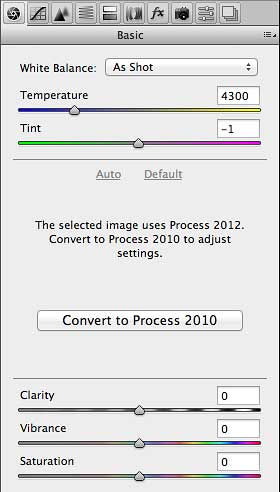
  • You can preserve edits made using Process Version 2012 in Lightroom 4 in a raw file you’ve imported into Photoshop CS5 as a Smart Object. However, you won’t be able to change Basic panel develop settings unless you switch back to Process Version 2010, as shown in the figure below. If you want to import Lightroom 4 raw files as Smart Objects into Photoshop and then edit them using Process Version 2012, you’ll need Adobe Camera Raw 7, which is available only with Photoshop CS6.

Raw image from Lightroom 4 as Smart Object in Photoshop CS5 with Adobe Camera Raw 6.7

  • You can import raw formats from new cameras such as the Canon EOS 1D X, Canon EOS 5D Mk III, Nikon D4, Nikon D800, Nikon D800E
  • More lenses have been added to the list of lens correction profiles.

For more information about new features and bug fixes, read the blog post by Lightroom product manager Tom Hogarty:

Lightroom Journal: Adobe Camera Raw 6.7 and DNG Convertor 6.7 Now Available on Adobe.com

As usual, you can read the release notes and download the installers from

http://www.adobe.com/downloads/updates/

or:

To update Photoshop and Camera Raw directly, start Photoshop and choose Help > Updates.

Also as usual, DNG Converter is useful for bringing the latest camera raw support to versions of Photoshop before Photoshop CS5.

Photoshop CS6 public beta is ready for you to download and try out

Adobe has posted a free public beta of Adobe Photoshop CS6! You can download it from Adobe. [Update: Because the final CS6 software shipped in May 2012, the beta software link now redirects to the Photoshop product page where you can download the free trial version of Photoshop CS6, or buy it.] That page contains the download link, important information, and links to resources for learning Photoshop CS6.

Lightroom users: Photoshop CS6 contains Camera Raw 7, which includes full compatibility with the new Develop module controls in Lightroom 4.

Among the first to report on Photoshop CS6 are Digital Photography Review and Macworld.

Remember, this is a prerelease version. Read the public beta page carefully, and back up any irreplaceable images before editing them with pre-release software. Have fun!

iOS: PDF file not readable on iPad/iPhone/iPod touch

Have you ever had trouble reading a PDF file on an iOS device such as an iPad? A PDF file that was emailed to me wouldn’t open on iPhone or iPad, and not even the file name showed up correctly. The file opened normally on my computer, so I knew the PDF file wasn’t completely corrupted. While it’s still a mystery why the PDF file didn’t work on iOS, in the end I did fix the problem. Here’s how.

I didn’t have access to the original document, so I couldn’t export the PDF file again from the source. I had to try and fix it on my side. I started by opening it in Adobe Acrobat X Pro, where I tried choosing File > Save As > PDF to write out a new copy of the file. After that didn’t work, I tried Reduced Size PDF on the same submenu. That didn’t work either. It didn’t help to open the PDF file in Apple Preview and choose File > Save As.

At this point I was stumped. Knowing that the file worked fine on a computer, I was still convinced that there had to be a way to fix it.

I next used Acrobat Pro X to save it to PDF-X/1A, a standard for high-end prepress. This time it failed even to convert, which turned out to be a good thing because the failure showed me an error message. The message suggested that I run the PDF through the Preflight feature using the Convert to sRGB preflight profile. That was a great idea; I should have thought of using Preflight sooner since the purpose of a preflight feature is to catch file problems before they cost time and money later down the line.

In Acrobat X Pro, Preflight is buried in the Print Production panel in the Tools pane on the right side of the Acrobat workspace. I selected Convert to sRGB, and then clicked the Analyze and Fix button.

Acrobat Preflight Convert to sRGB

That worked! The next time I transferred the PDF file to iPad, it was perfectly readable.

In the end, my troubleshooting guess was correct: Find something that can rewrite the PDF file radically enough to change whatever was causing the error, even without knowing the exact problem.

Of course, not everyone has Acrobat Pro and it is not cheap, but if you have access to some versions of Adobe Creative Suite, Acrobat Pro is included and so you have it. Keep Acrobat Pro in mind if you run into problems like this one. [Edit: As of 2013 Adobe Creative Suite is now Adobe Creative Cloud.]

While Apple Preview on a Mac doesn’t have the variety of production tools available in Acrobat Pro, there is another way to do something similar: Open ColorSync Utility, choose File > Open and open the PDF file, and then choose Create Generic PDFX-3 from the Filter pop-up menu at the bottom of the document window. I did not try that in my case, though, since I had already fixed mine.

What might have caused the problem? I may never know for sure, but based on what fixed it, I’d guess that there was a problem with at least one of the color images in the PDF file. It looked like it had been created in Word with maps pasted from Windows screen shots. Maybe there were indexed-color BMP or GIF images in it. While that should not have been a problem, what we do know is that the Convert to sRGB preflight profile did fix the problem.

While this solution solved my problem, it may not fix every problem with reading PDF files on iOS devices. If it doesn’t solve your issue, I hope that describing a successful troubleshooting process helps point you in the right direction. Good luck!
Watch my free Photoshop CS5 webcast, October 19 on CreativeEdge

Register now for the free Creative Edge webcast: Real World Adobe Photoshop CS5 for Photographers

A lot has happened in the Photoshop universe since I published Real World Adobe Photoshop CS5 for Photographers, so get caught up by joining me for a free CreativeEdge webcast on October 19, 2011. In addition to talking about some of the latest developments in Photoshop land, I’ll show you some of my favorite performance and productivity tips to help you get the most out of Photoshop CS5 and Adobe Camera Raw, including features that I feel have been overlooked and under-appreciated. I’ll also talk about Photoshop and social media, and protecting your images online.

That’s Thursday, October 19, 2011 at 10 a.m. Pacific time. Be sure to register by clicking the link below or the banner above. See you there!

Register for the Real World Adobe Photoshop CS5 for Photographers webcast on CreativeEdge