Adobe Photoshop

Color Management without the Jargon video: now available!

[Note: I now have a newer video, Color Management for Photographers and Designers (2014), that updates what I covered in Color Management without the Jargon (2009). Color Management for Photographers and Designers includes more current information about color-managing Photoshop, Lightroom, and Adobe Creative Suite applications as well as demonstrations of profiling a display, a printer, and a camera.]

Are you a photographer or designer and still not quite sure how color management works? Confused about how to use color profiles? Have you tried to read books and articles about color management, but are overwhelmed by the terminology?

Color Management without the Jargon cover

Now you can better understand color management with my DVD and online video, Color Management without the Jargon: A Simple Approach for Designers and Photographers Using the Adobe Creative Suite. I created this video as an approachable introduction to the ideas behind color management and the basics of a good color management workflow. While there’s a lot of good material about color management out there, I feel that much of it jumps into jargon and abstract concepts too quickly. I saw an opportunity to explain color management in the simplest possible terms. I intend Color Management without the Jargon to prepare you for and to complement the deeper, more comprehensive, but also far more challenging material out there.

What you’ll learn

This 1½ hour training video helps beginning and intermediate Photoshop, Bridge, InDesign, and Illustrator users understand the basics of color management, including how to profile monitors and create consistent color in a production workflow. This video provides technical background without being overwhelming, and presents concepts and steps that are easy to follow.

How to watch

You can order Color Management without the Jargon as a DVD from your favorite bookseller or store, or you can watch it online as a streaming video from Peachpit Video. Here are some links to get you started:
DVD on Amazon.com
DVD on Peachpit.com
Watch online at Peachpit.com

More info

Below is the publisher’s marketing copy if you want to learn a bit more…

Every digital photographer or graphic designer knows that color management is important, but many still do not calibrate their computer monitors or understand how color works in different spaces. This 90-minute DVD will help beginning and intermediate Photoshop, Bridge, InDesign, and Illustrator users understand the basics of color management and how to create consistent color in their workflow.

Highlights of this accessible and easy-to-follow DVD video include:

  • Calibrating your monitor and digital SLR camera
  • Tackling color profile detective work in Photoshop and InDesign
  • Assigning, converting, and embedding profiles
  • Managing color output for print and the Web
  • Integrating raw files and Lightroom into your workflow
  • Handling color conversions between video-editing software and Photoshop

The supporting 48-page printed reference guide provides additional links and content.

Photoshop CS4/CS5: Restoring pre-CS4 channel shortcuts and curves

In Adobe Photoshop CS4, the keyboard shortcuts for viewing channels changed, and the Curves adjustment layer was implemented as a non-modal panel rather than a modal dialog box. While these changes were done for good reasons, many people are unhappy with them and wish they could do things as they did in Photoshop CS3 and before. Since Photoshop CS4 shipped, a couple of tools have emerged to roll back the changes to some extent.

Use Old Shortcuts plug-in

In Photoshop CS4 (for Photoshop CS5 see below), you can download and install a plug-in that restores the pre-CS4 shortcuts for viewing channels, where Command-1/Ctrl-1 is the composite view of channels. (In Photoshop CS4/CS5, Command-2/Ctrl-2 displays the composite channel view, and accordingly, the single-channel viewing shortcuts were all moved up one key.) The link to the plug-in is available from John Nack’s blog post “Use Old Shortcuts” plug-in now Universal. To install it, first unzip the downloaded file, identify the plug-in for your system (Mac or Windows), then drag it into the Plug-ins folder inside the Adobe Photoshop Cs4 application folder. It doesn’t matter where it is inside that folder.

In Photoshop CS5, you don’t have to use the plug-in to restore the channel shortcuts because there’s a built-in option that does the same thing. To use it, choose Edit > Keyboard Shortcuts and select the Use Legacy Channel Shortcuts check box.

Curves-Dialog panel

This is a panel that lets you add a new Curves adjustment layer or edit a selected Curves adjustment layer using a dialog box, as it was before Photoshop CS4. This panel was built as an extension using Adobe Configurator, and is again downloadable from John Nack’s blog (CS4 Curves Dialog panel) (CS5 Curves Dialog panel). To install it, first double-click to unzip it, then double-click the unzipped .mxp file. It should open in Adobe Extension Manager, which should install it into the right location automatically. You may need to download and install (or update) Adobe AIR for the extension to work. For more details, see John Nack’s blog post, Using a dialog box to edit a Curves adjustment layer.

Important: It’s still recommended that you learn the CS4/CS5 shortcuts and Curves adjustment panel workflow and shortcuts, because it’s the way future versions of Photoshop are likely to work. There is no guarantee that the plug-in or extension will still work or be upgraded to work with versions of Photoshop beyond CS4. Even though I’ve used Photoshop for many years, I’m using the new shortcuts, partly because I agree with the decision to make the Actual Pixels (100% magnification) shortcut (now Command-1/Ctrl-1) match other Adobe and Apple software.

Epson inkjet printers: Printer preset forgets settings

If you use an Epson Stylus Photo/Epson Stylus Pro printer in Mac OS X and you save printer settings as printer presets (a recommended practice), there may be times when you choose a preset and realize that some of the settings mysteriously deviate from the way you saved them. For example, you might swear that you saved the Printer Color Management setting as No Color Management, but it somehow turns itself back on when you apply a preset. Other symptoms are finding the wrong paper type or color settings selected. And even more mysteriously, you might notice that sometimes it does remember the same settings that it forgot on another occasion.

I don’t know if this applies to all printers in OS X, but presets for Epson photo printers are quite sensitive to the conditions under which they were created—and unexpectedly, this can include the state of settings that are outside the Print dialog itself. Pay particular attention to the settings in the Page Setup dialog box.

For example, I once discovered that reason my Epson 3800 printer presets would not remember my color settings was that the current paper source did not match the paper source that was in effect when I created the preset! I’ve had to make two versions of my favorite presets: One preset for when I’m using the automatic paper feeder, and another for when I’m using the manual feed slot. The settings saved in each preset are exactly the same; the only difference is which paper feed is selected when I save each preset. Of course, I have to mention the paper source in each preset’s name, so that I know which one to select.

I have not yet tested if this behavior is the same in Windows.

This interaction between paper source and printer presets is yet another reason to make sure you always check the Page Setup dialog box before you print, and especially before you print a Photoshop document for the first time. In Page Setup, the selected printer, paper size, and paper source affect what you get to do in the Print dialog box. If you don’t get Page Setup right from the beginning, you’re setting yourself up for confusion when you print.

Lightroom. If you’re trying to get Epson printer driver settings to stick in Adobe Photoshop Lightroom on Mac OS X when you save a Lightroom printer preset, the trick is to not use the Epson printer driver presets. Instead, leave the printer preset set to Standard, make the printer driver settings,  and then save the Lightroom printer preset.

Camera Raw: Detailed image inspection with one key

Camera Raw 4.1 and later add a very useful feature that appeared first in Lightroom. If you want to inspect an image closely for dust or other defects that need retouching, the Page Down key takes you through the entire image, from the top left corner to the bottom right corner. Here’s how it works:

1. In Camera Raw, zoom to 100% view or higher.
2. Press the Home key to view the top left corner of the image.
3. Press the Page Down key to move down one screen.
4. Press Page Down again to move down another screen. This is the cool part: If you hit the bottom of the image and press Page Down, Camera Raw automatically jumps to the top of the image one screen to the right! This means that all you have to do to check the entire image is keep pressing Page Down, until you reach the bottom right corner of the image.

On notebook computers without separate Home, End, Page Up, or Page Down keys, remember that they may be available as second functions on your arrow or other keys. For example, on Mac notebooks, these four functions are overlaid on the four arrow keys, and invoked when you also press the Fn (function) key. So to use Page Down, you’d press Fn+Down Arrow.

Open Raw files in Adobe Camera Raw by default

If you use Adobe Camera Raw as your raw converter for digital camera raw files, you might want to be able to open your raw files in Camera Raw when you double-click them. For most files, you would do this in your operating system by changing which application opens the camera raw file type.

But with Camera Raw, there’s a catch. Camera Raw is not a standalone application, so you can’t associate it directly with a file type. It turns out that this is not a big deal, because Adobe Photoshop must open camera raw files in Camera Raw anyway. So the solution is to associate camera raw files with Photoshop. I show the steps below for Mac OS X; the steps for Windows are similar.

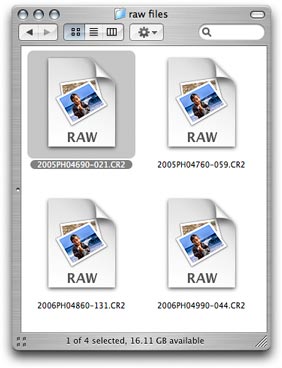
1. On the desktop, select a raw file of the type you want to open in Photoshop. I’ve selected a CR2 file from a Canon digital SLR.

Select a raw file

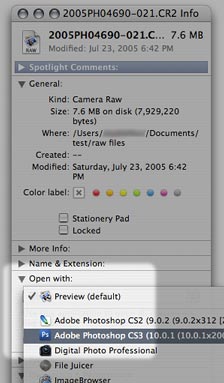
2. Choose File > Get Info (Command+I).

Open the Get Info window

3. From the Open With pop-up menu in the Get Info window, choose the version of Photoshop that you want to use to open your raw files.

Assign Photoshop to the file type

4. The file icon updates to indicate that Photoshop will now open it.

Icon indicates new association

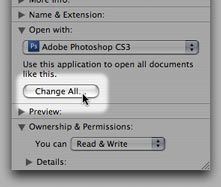
5. Click “Change All” so that your change applies to all files of the same type. Other file icons may not update immediately, but the change has taken effect. From now on, when you double-click that type of a raw file, it will open in Photoshop, which will then open it in Adobe Camera Raw.

Set this association as the default

Because the file association is tied to a specific file type, making this change affects only the file type you’ve changed. You’ll need to associate each different raw file type separately. For example, if you made this change for NEF (Nikon) raw files and then you later work with some CR2 (Canon) raw files, you’ll have to associate the CR2 files with Photoshop too.

(If you’re having trouble getting Camera Raw to see your raw files in the first place, try updating Camera Raw. Support for new cameras is added several times a year. Either download the latest version from adobe.com, or run the Adobe Updater utility that came with Photoshop. Note that the current version of Camera Raw may not work with older versions of Photoshop. If you are trying to edit a new camera’s raw files in a version of Photoshop that’s too old for the current version of Camera Raw, you should either upgrade Photoshop or use the free Adobe DNG converter to convert raw files to the DNG format, which older versions of Camera Raw can edit.)

Thanks to Céline C. for asking this question!